Save 23% ($351) & Get a Free 1-1 Call with our Team ⏰ : 0d 2h 59m 43s
How to Use DEX With Phantom Wallet (Visual Guide)
Decentralized exchanges (DEXs) on Phantom Wallet offer fast, secure, and permissionless trading options for users. However, many newcomers don’t know how to use DEX with Phantom Wallet or monitor their transactions effectively. That’s where platforms like Dexscreener come in. Learning how to connect Phantom Wallet to Dexscreener can help you track live trades, check liquidity, and monitor swaps in real-time, ensuring you make informed decisions.
DEXs are crucial in the crypto ecosystem, enabling trust and permissionless trading of digital assets. In this guide, There are several DEXs available on the Solana Blockchain. We’ll be going over 3 decentralised exchanges and how you can swap them. Once you get the hang of one of them, you’ll be able to use all of them without any issues.
TL;DR
- Select a Centralized Exchange (CEX): Download Binance and create an account.
- Login to Binance: Use Gmail or another method to log in.
- Add Funds to Binance: Buy USDT via bank transfer, card, or P2P.
- Create Phantom Wallet: Download, set up, and save your recovery phrase.
- Transfer USDT to Phantom Wallet: Withdraw USDT from Binance to Phantom Wallet (via Solana network).
- Use a DEX (Raydium, Jupiter, Orca): Connect Phantom Wallet and swap USDT for WIF.
- Raydium: Open, connect Phantom Wallet, select USDT/WIF, and swap.
- Jupiter: Open, connect Phantom Wallet, select USDT/WIF, and swap.
- Orca: Open, connect Phantom Wallet, select USDT/WIF, and trade.
- Track Trades on Dexscreener: Connect Phantom Wallet to monitor transactions.
- Keep Some SOL for Fees: Ensure you have enough SOL for gas fees.
Video Tutorial
Quick Step-by-Step Flow Chart
For those looking for a quick overview, here’s a step-by-step flow chart that outlines the entire process at a glance. Refer to this chart if you want a visual guide to follow alongside the detailed steps below.

Click Here for the Full High-Resolution Flow Chart
Here are the DEXs we’ll be covering today,
- Raydium
- Jupiter
- Orca
Step 1: Select an Exchange
We don't want to rush the process of learning how to use a DEX with Phantom Wallet. We'll take you through each step of the way, and in this very first, you need to choose a CEX (Centralised Exchange). Finding a reliable and trustworthy platform is the key. You must register on a cryptocurrency exchange. Here are some popular exchanges:- Binance
- Coinbase
- Kraken
- Gemini
- Robinhood
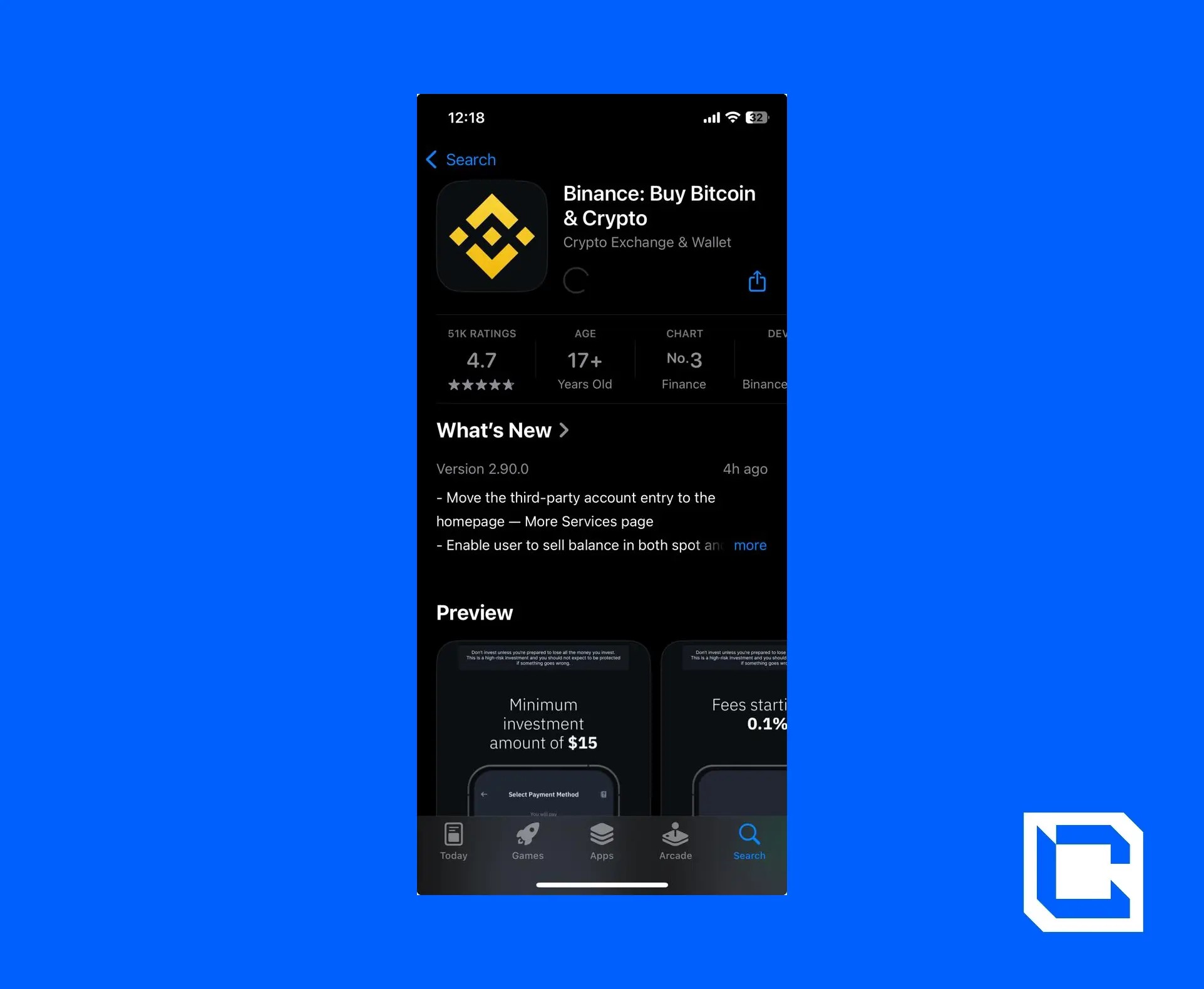
- Go to the app store and download the Binance app on your phone.
Step 2: Login to Your Account
Once the app is installed, the next step is to log in to your account.- We'll be using our Gmail account to log in quickly.
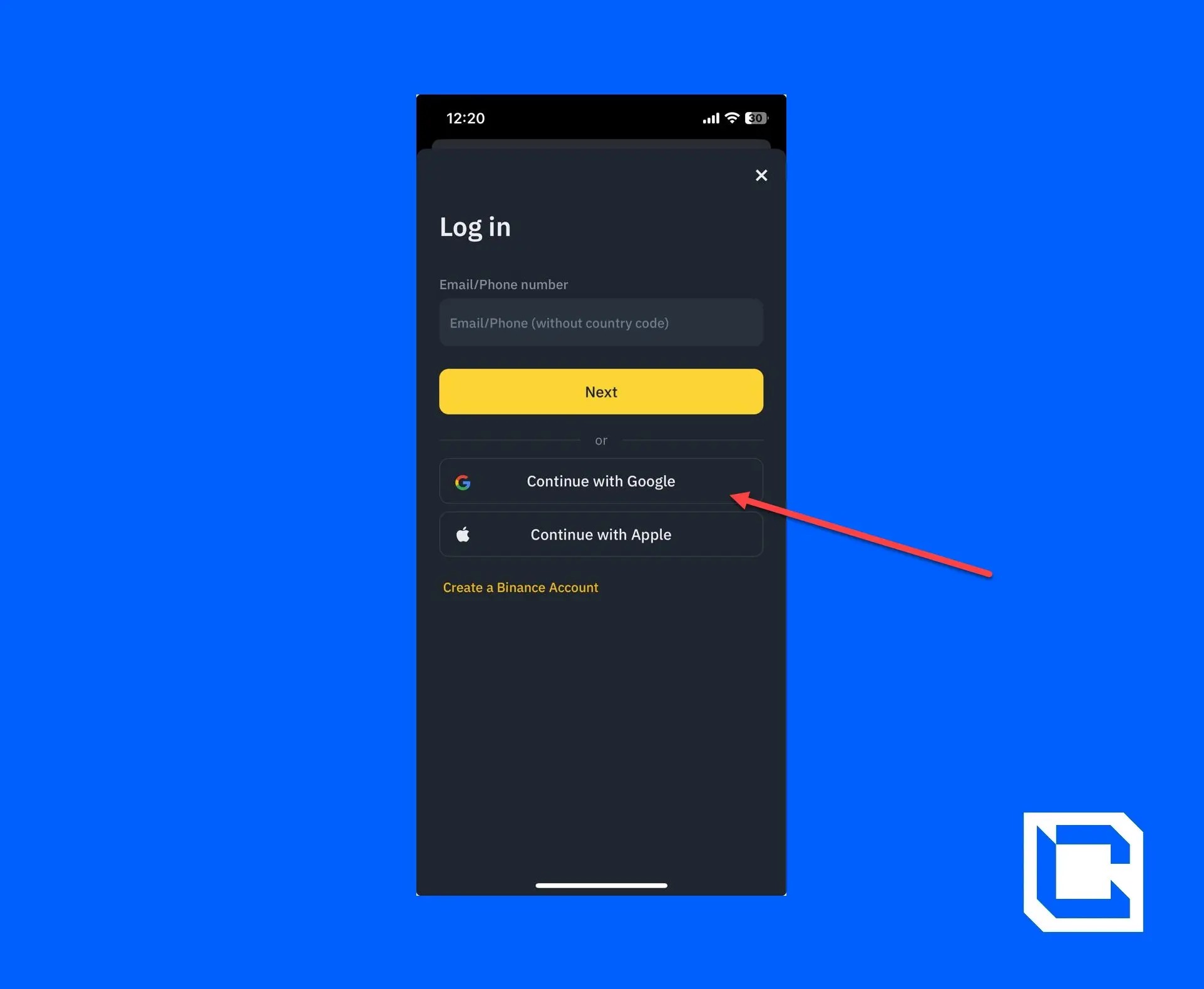
Note: To do any exchange or trading, you must have a verified account. To learn how to create and verify your Binance account, check out our guide on how to use Binance.
Step 3: Adding Funds to Your Account
Now that your account is ready, you need to have funds before learning how to buy a DEX with Phantom Wallet. There are usually several options to fund your account. You can choose from the following options if you don't have any crypto assets.- Buy with GBP: You can add funds using a bank transfer or credit/debit card.
- P2P Trading: You can buy directly from another user on the platform.
- Deposit Crypto: You can exchange other cryptocurrencies for GBP.
Note: Once you've deposited GBP into your account, you'll have to convert it into USDT. It's a fairly simple process.
However, we’ll be adding USDT directly to your wallet using a credit/debit card.
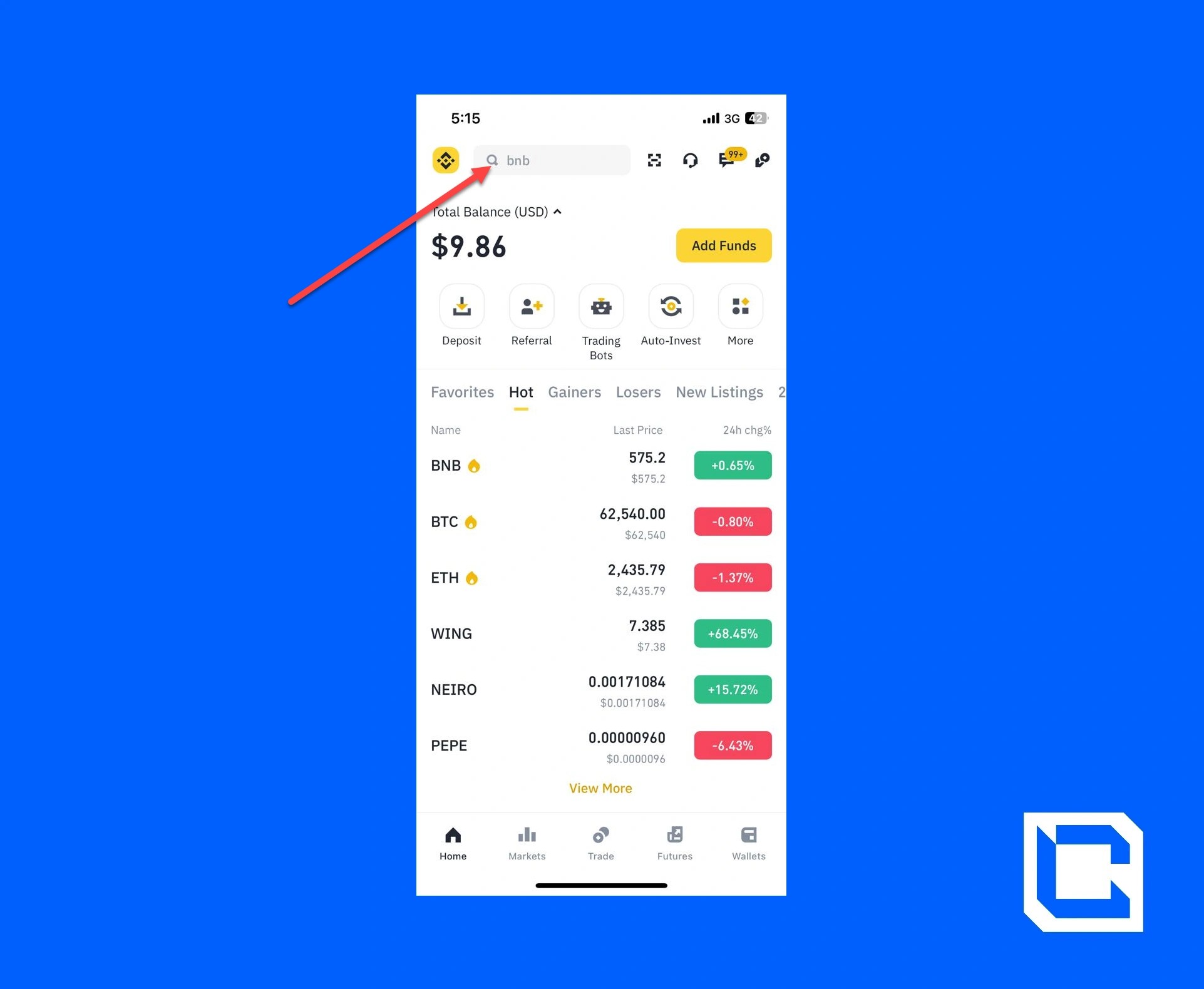
- First, you need to open the Binance app and tap on the search bar.
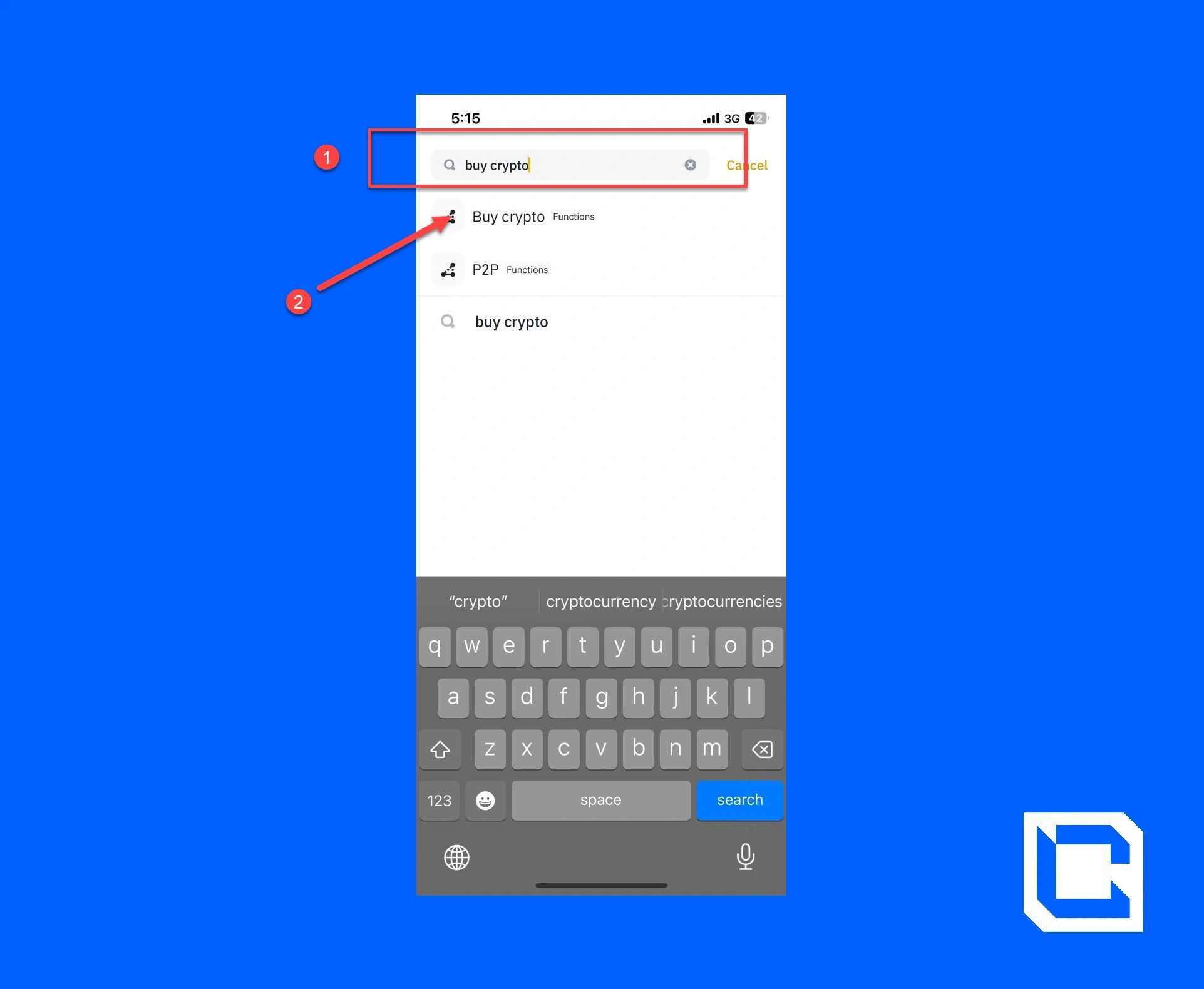
- Search for “Buy Crypto” and tap on it.
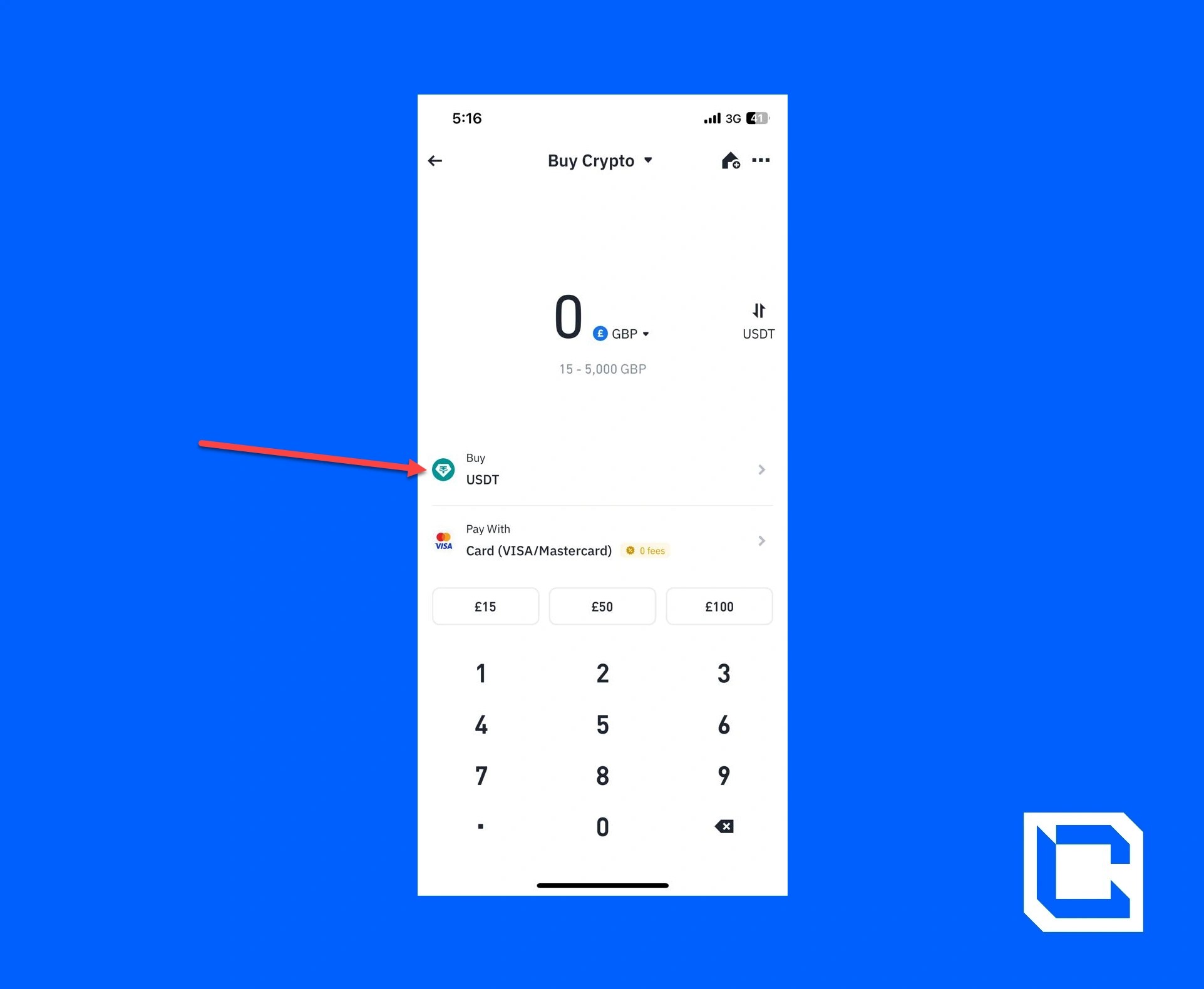
- Make sure that the crypto you want to buy is set to USDT.
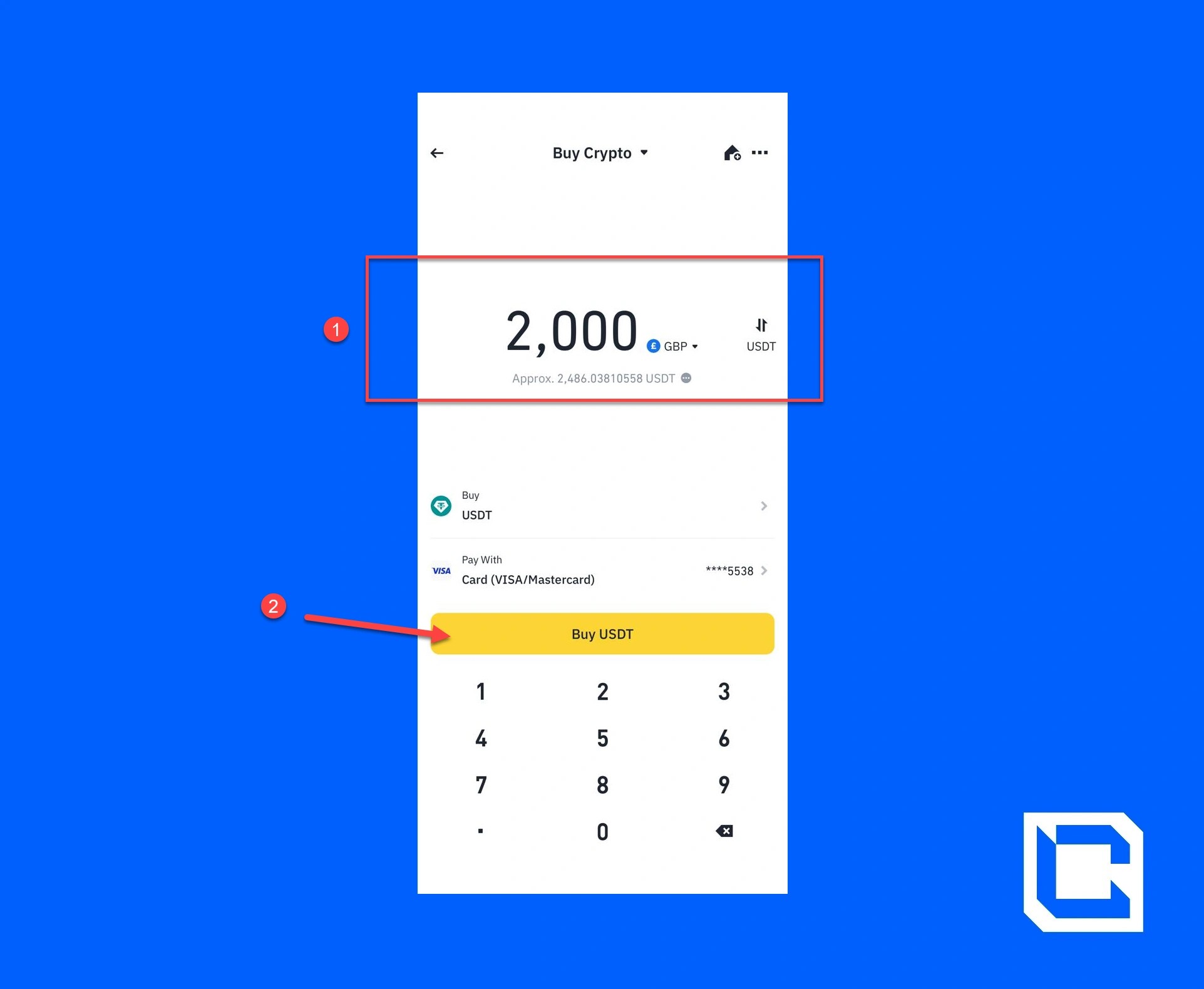
- Enter the GBP you want to spend, select the payment method for the credit/debit card, and tap on the “Buy USDT” button.
Step 4: Creating Phantom Wallet
Now, we'll create a Phantom Wallet if you want to use it with a decentralised blockchain. To do this, you need to first install and set up a wallet on Phantom Wallet.- Download the “Phantom Wallet” app to your mobile phone.
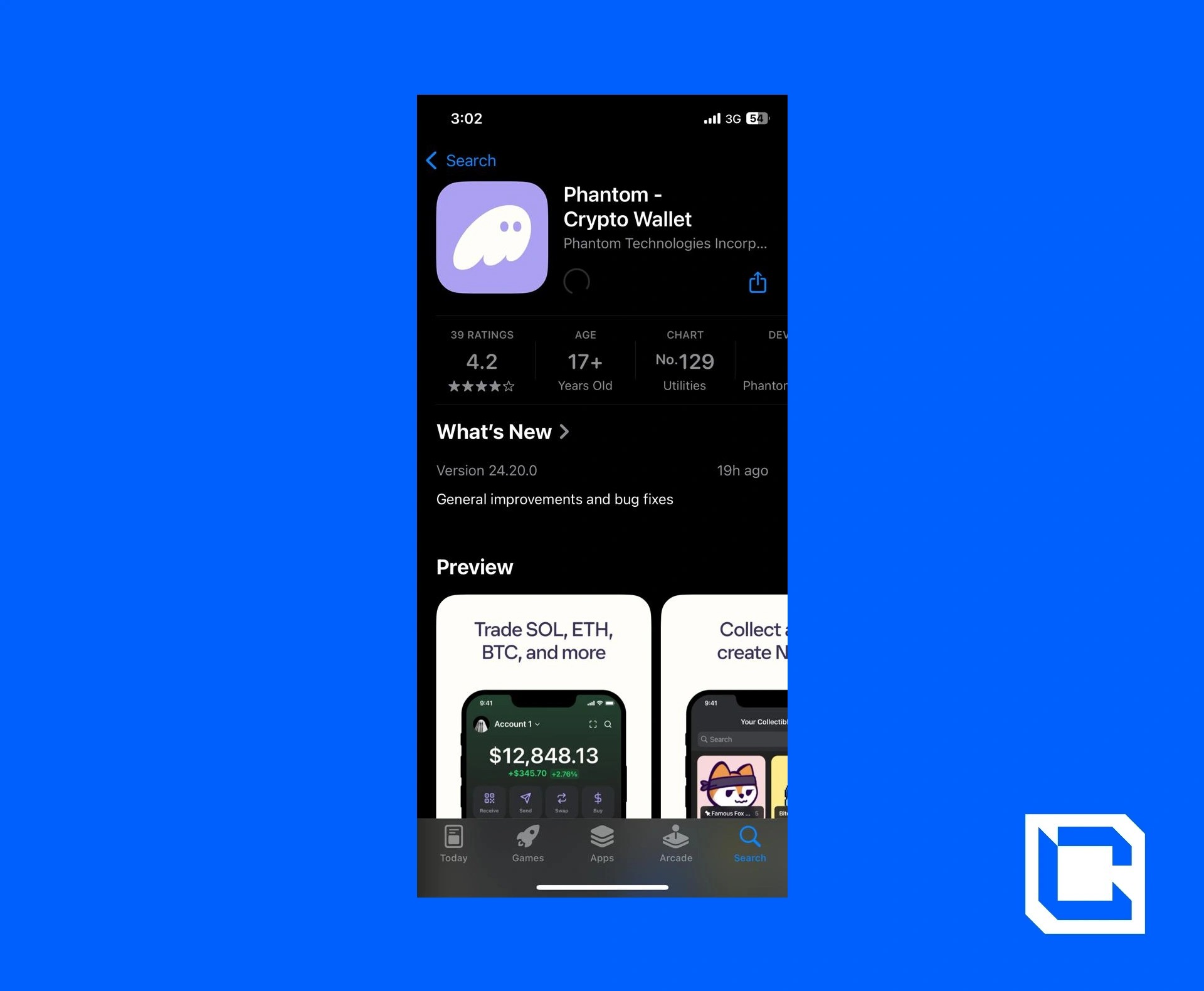
- Once downloaded, open the app and agree to the terms of service. After that, tap on the “Create a new wallet” button.
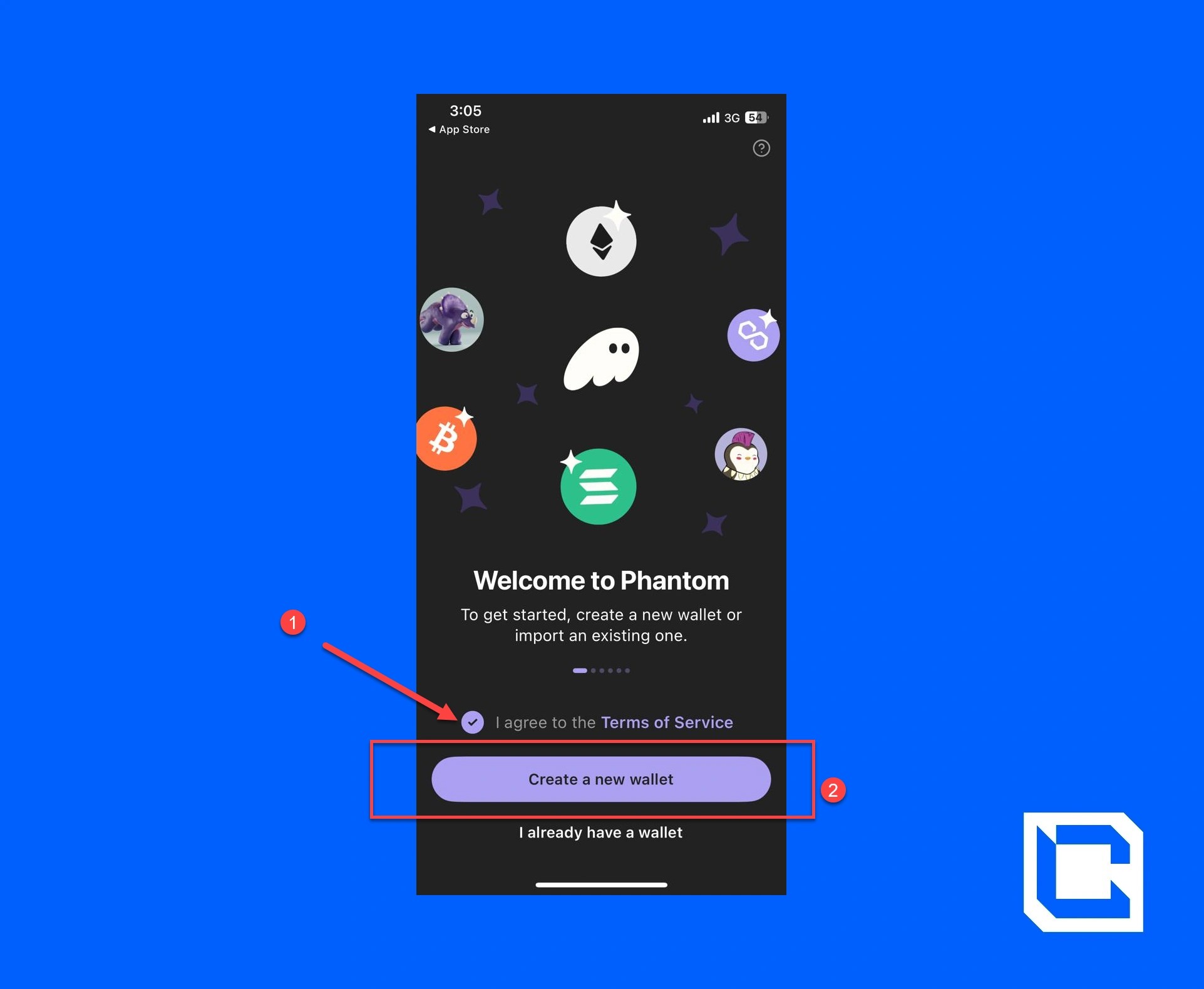
Note: If you already have an account, then simply tap on the “I already have a wallet” option.
- Toggle the “Face ID” switch to on and tap the “Next” button.
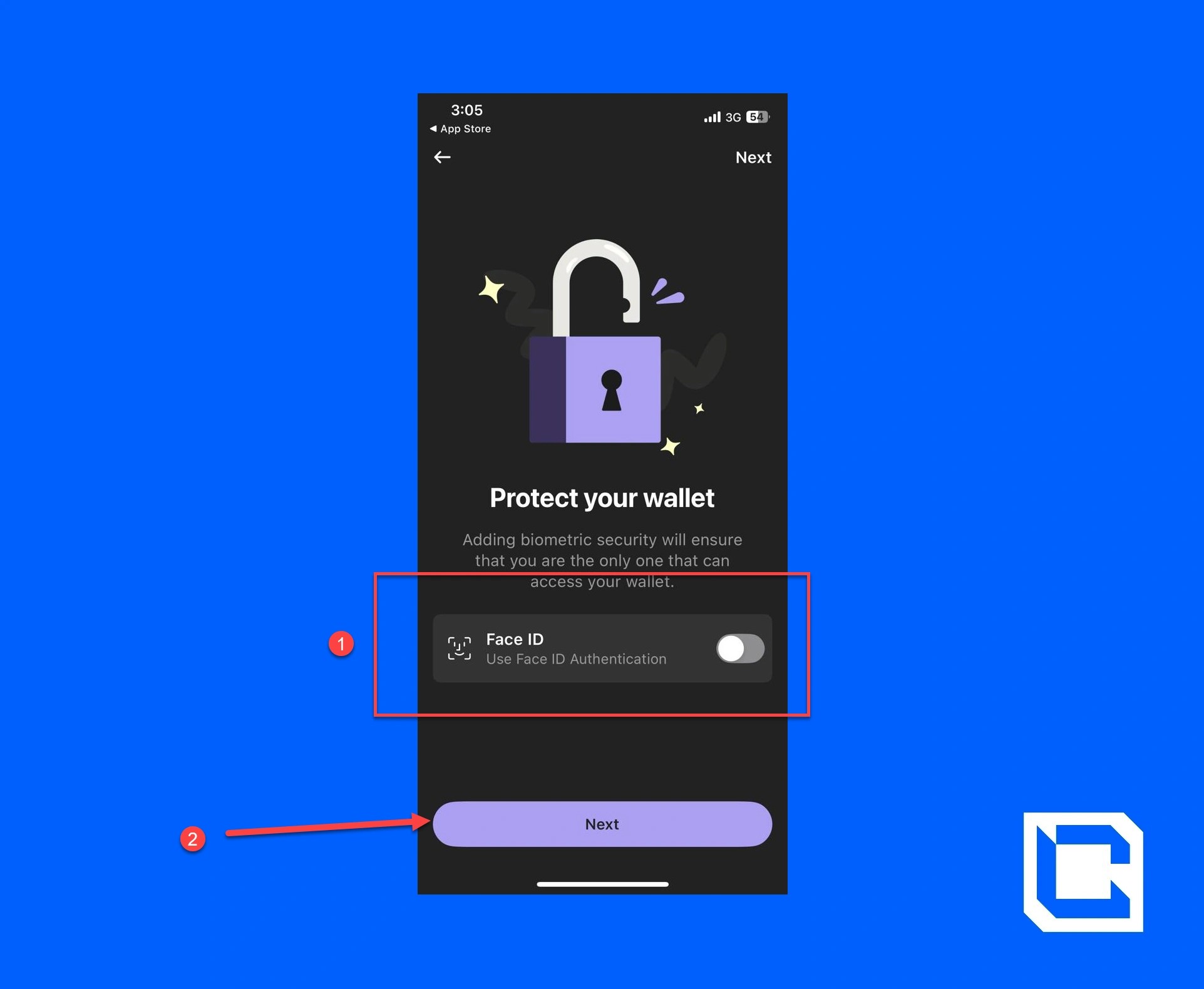
- Copy the recovery phrase and tap on the “OK, I saved it somewhere” button.
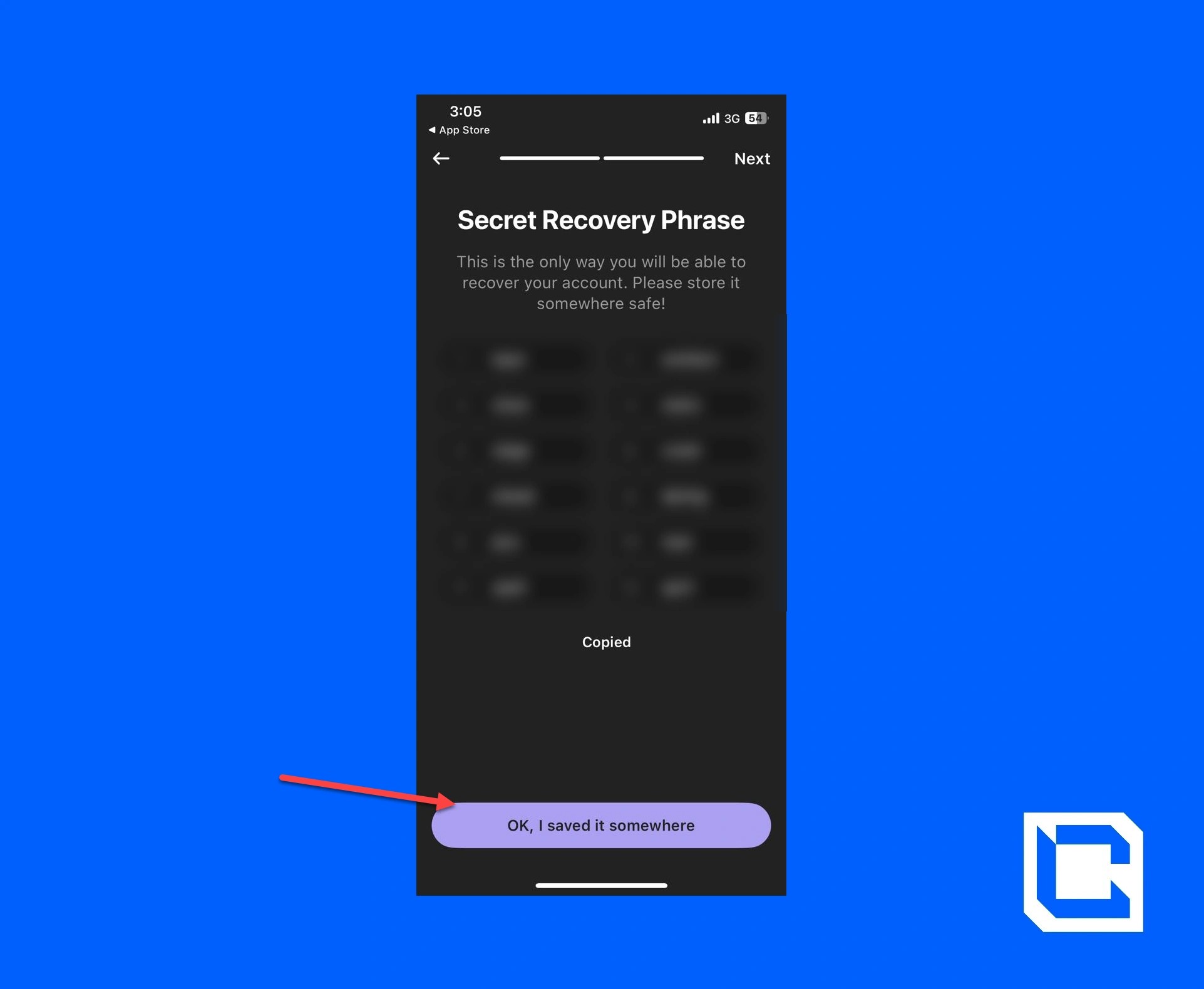
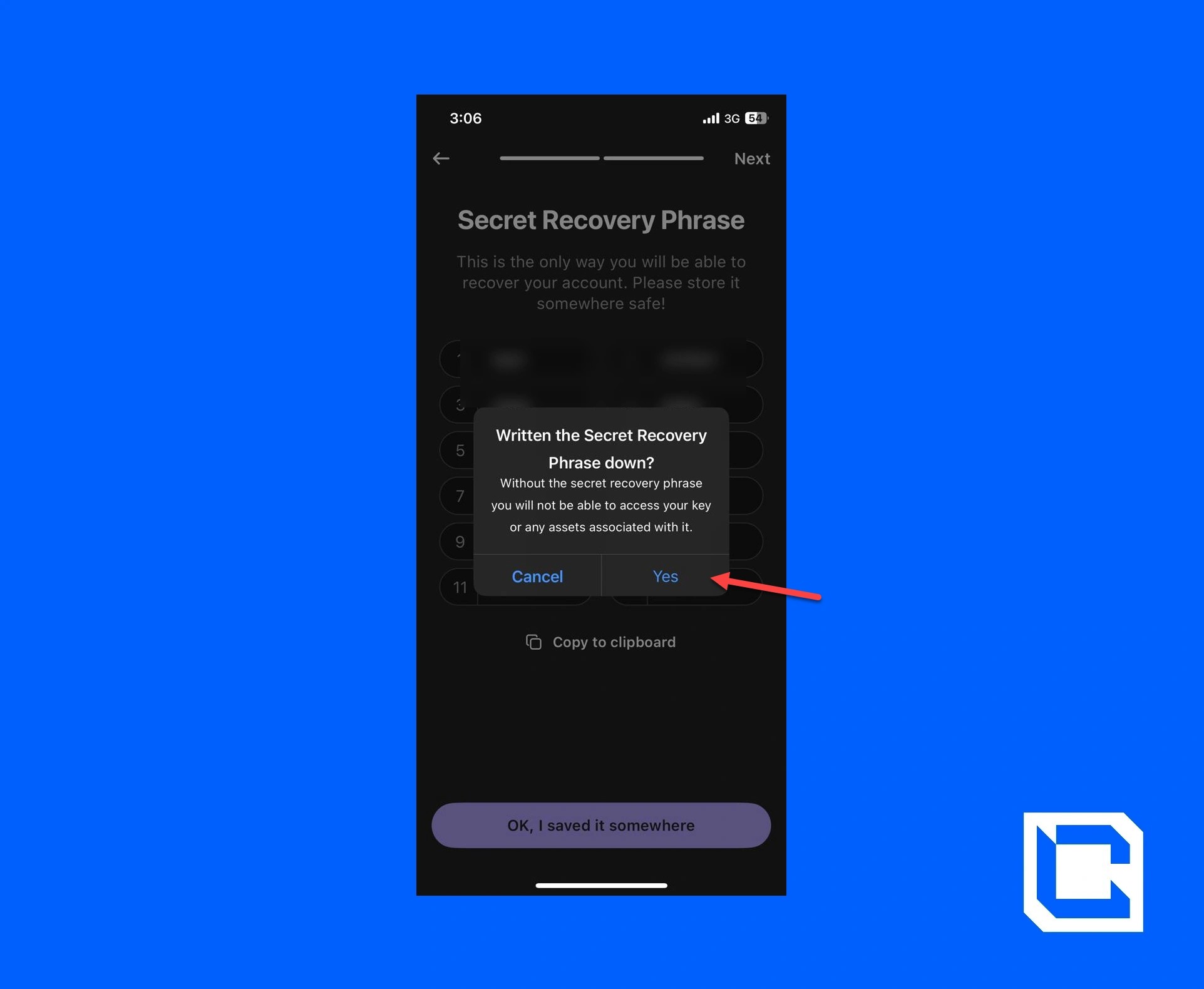
- A pop-up will appear on the screen. Tap on “Yes” to continue.
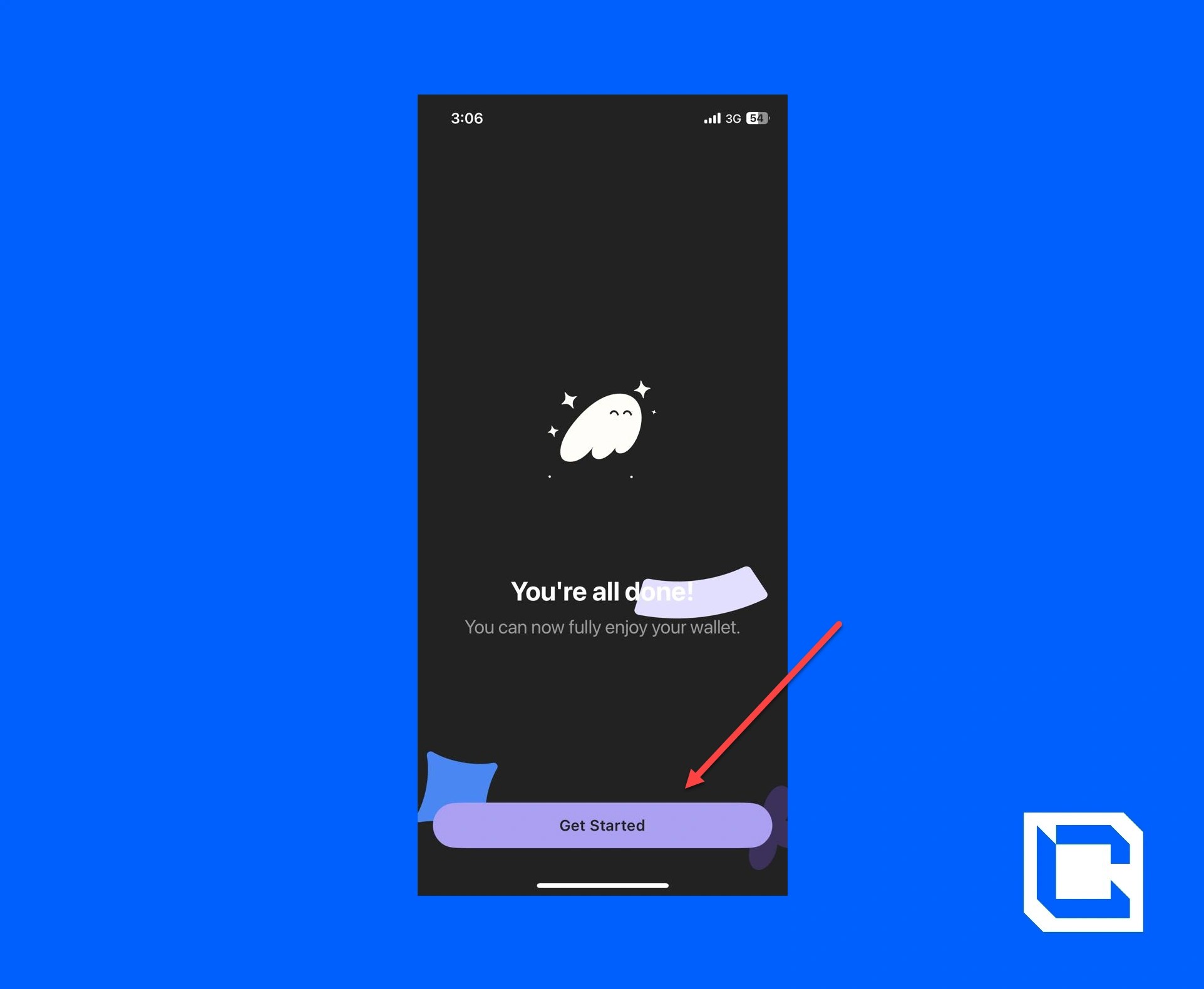
- Now, your account is ready. Just tap on the “Get Started” button.
Step 5: Adding USDT to Phantom Wallet
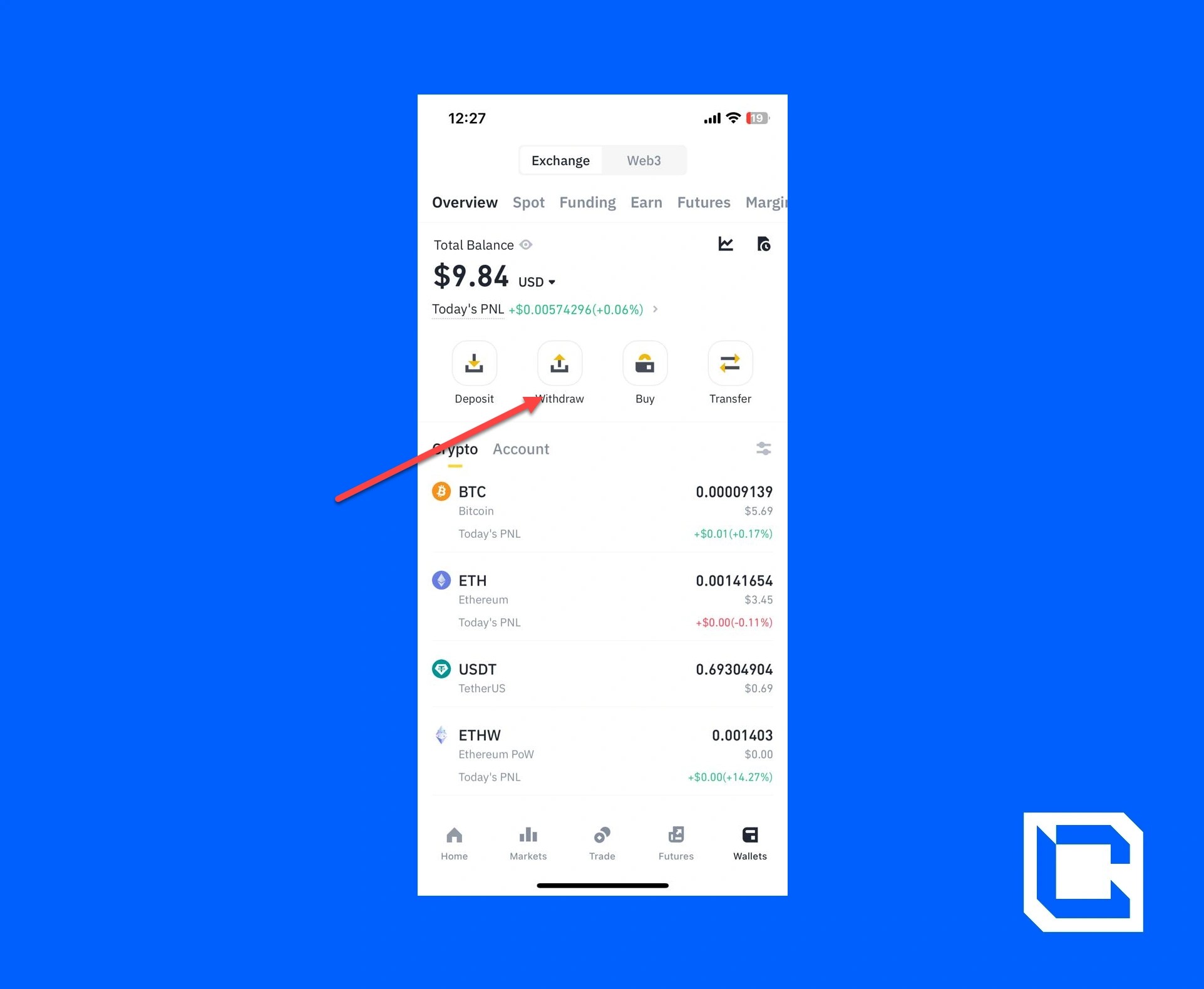
Now that you set up the wallet, you need to add USDT to your Phantom Wallet. We’ll be using Solana because it has the lowest exchange rate.- Go to the Binance app and tap on the “Withdraw” icon.
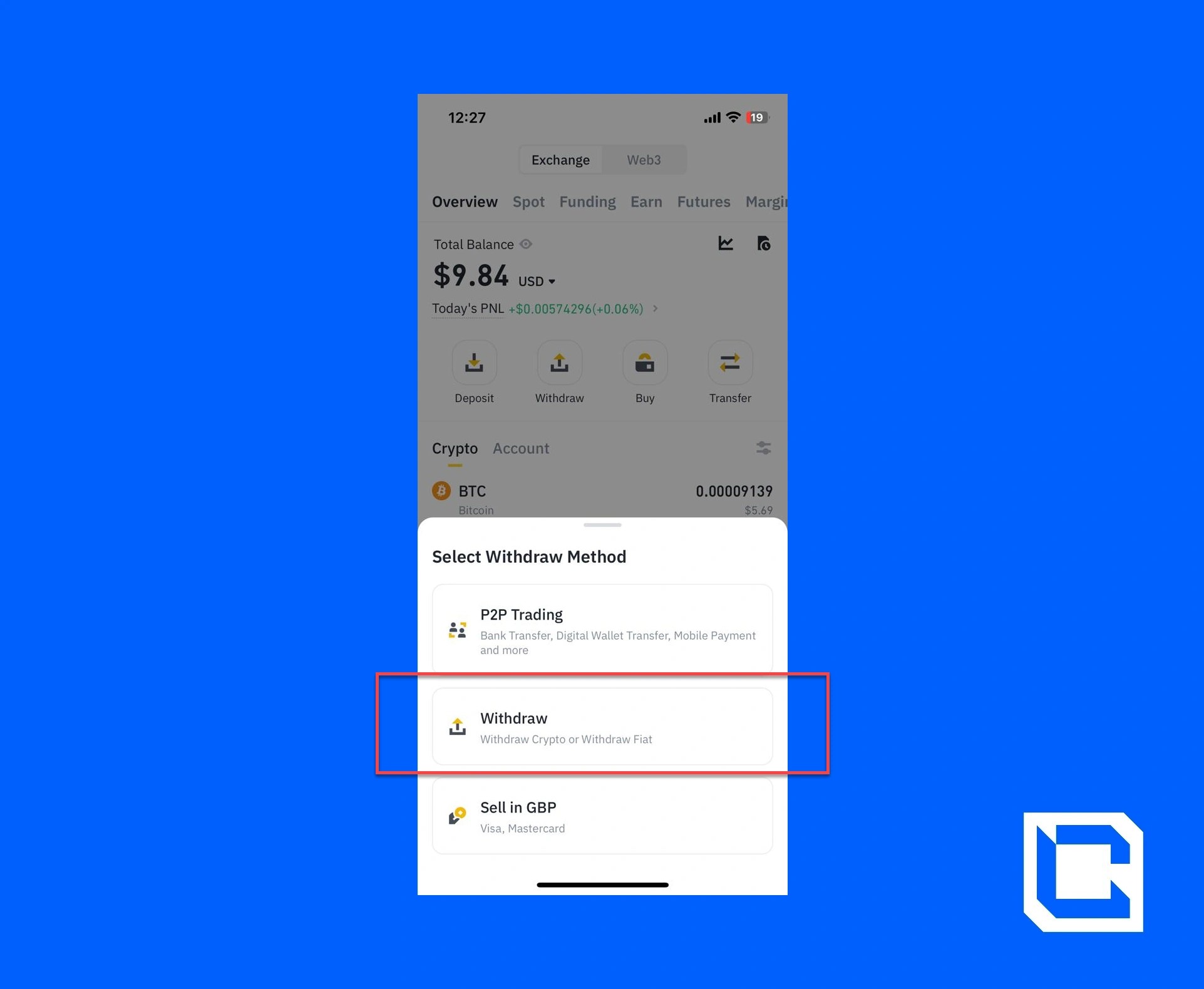
- Again, tap on the “Withdraw” option.
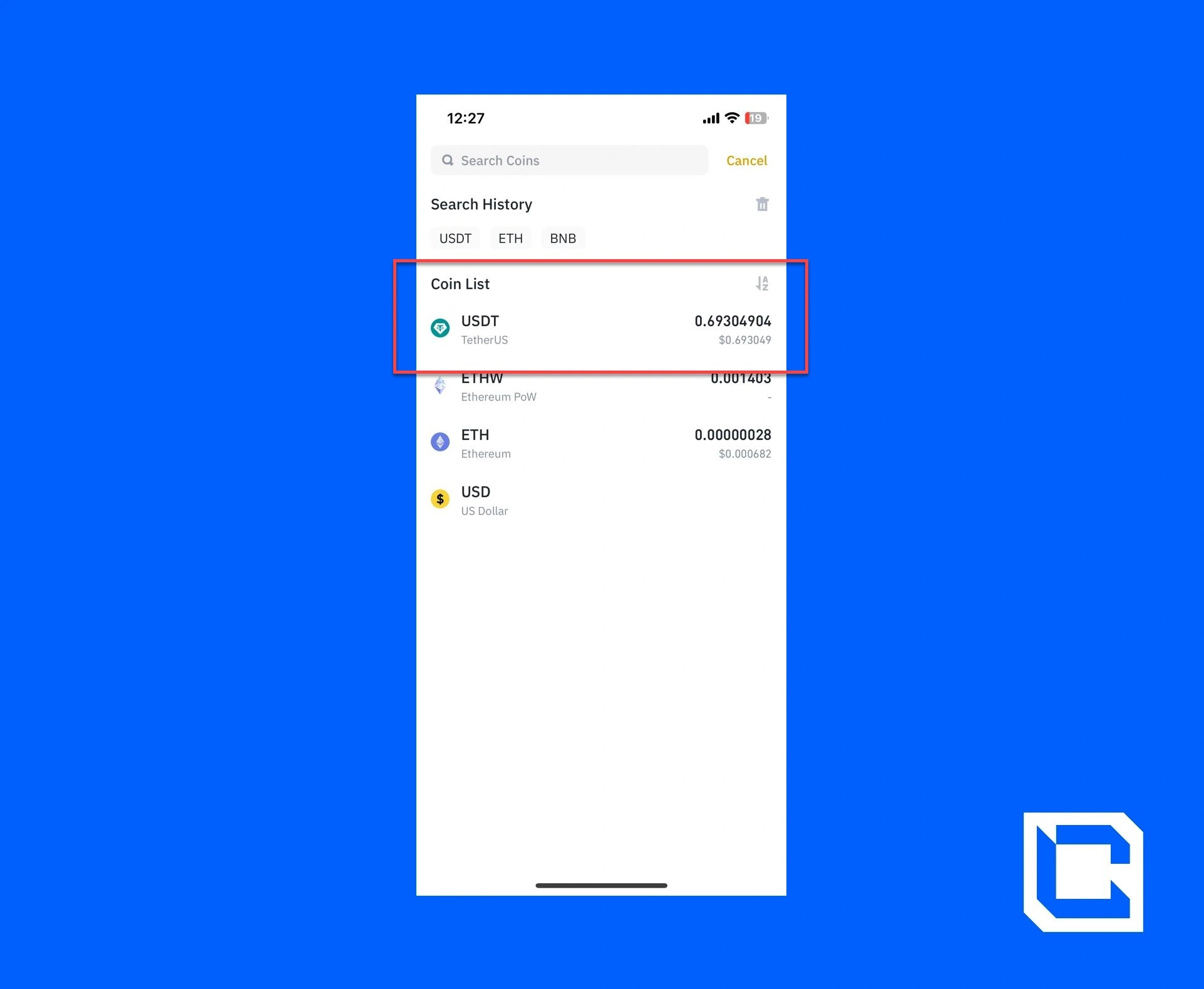
- Choose the USDT option.
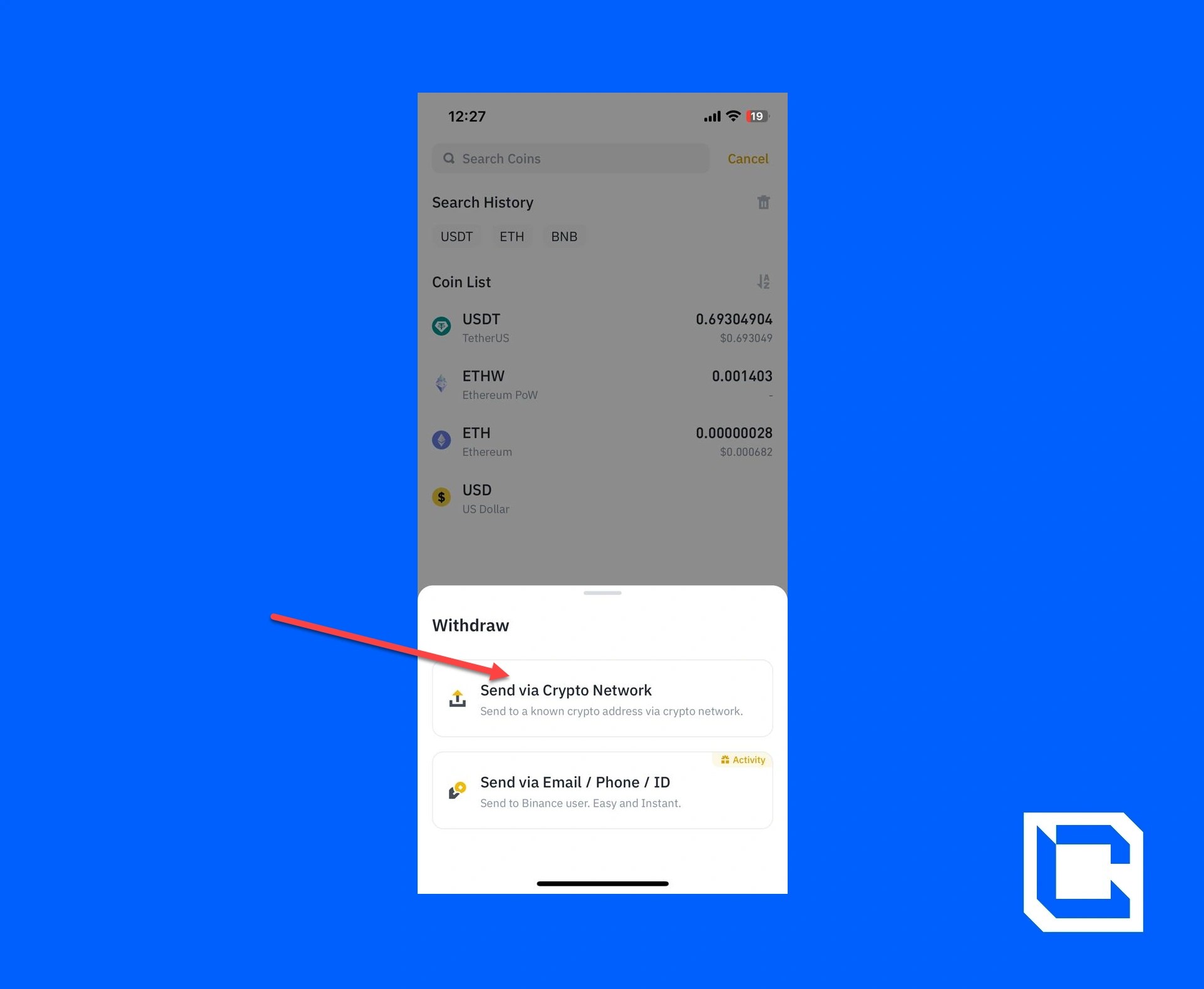
- Tap on the “Send via Crypto Network” option.
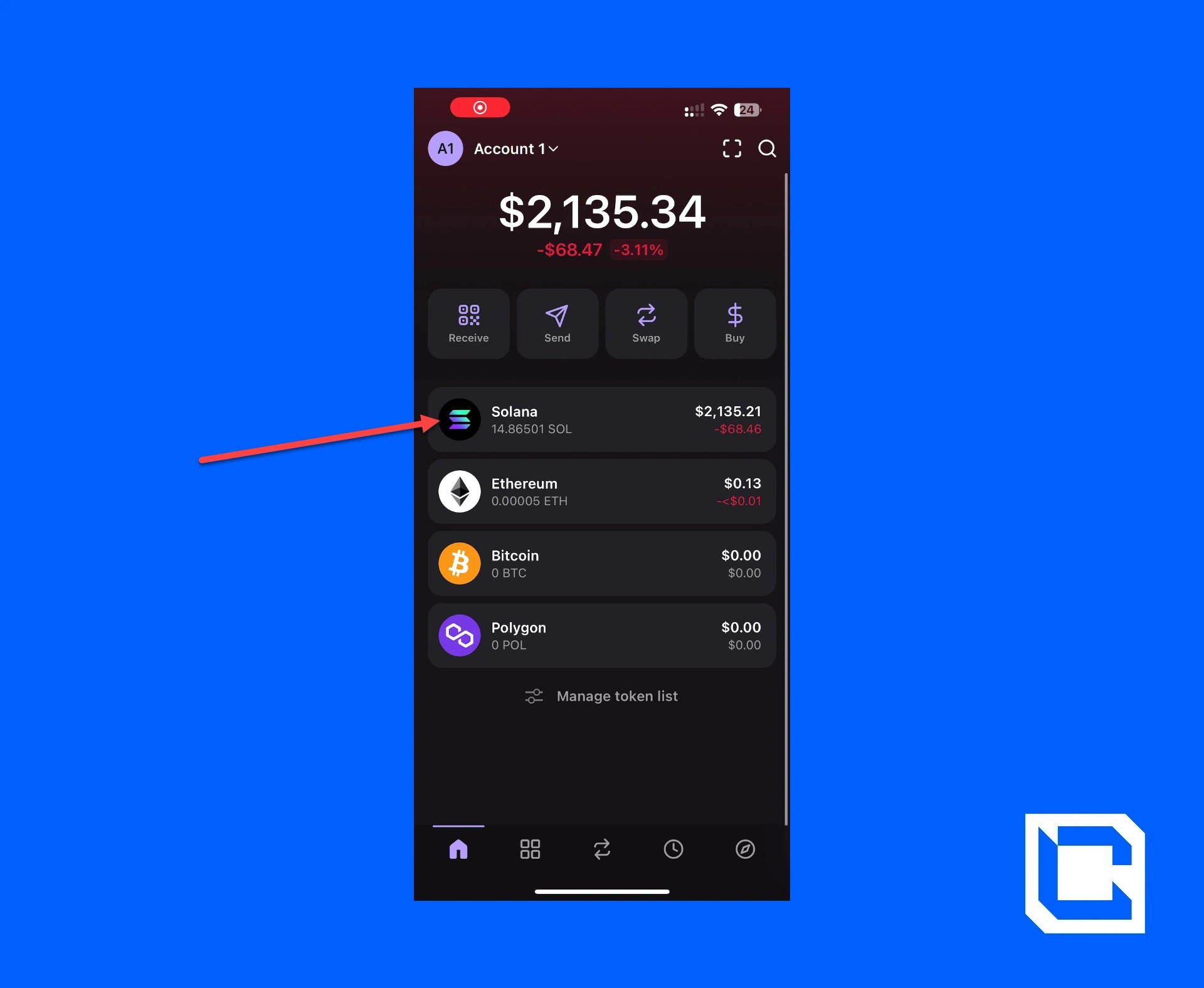
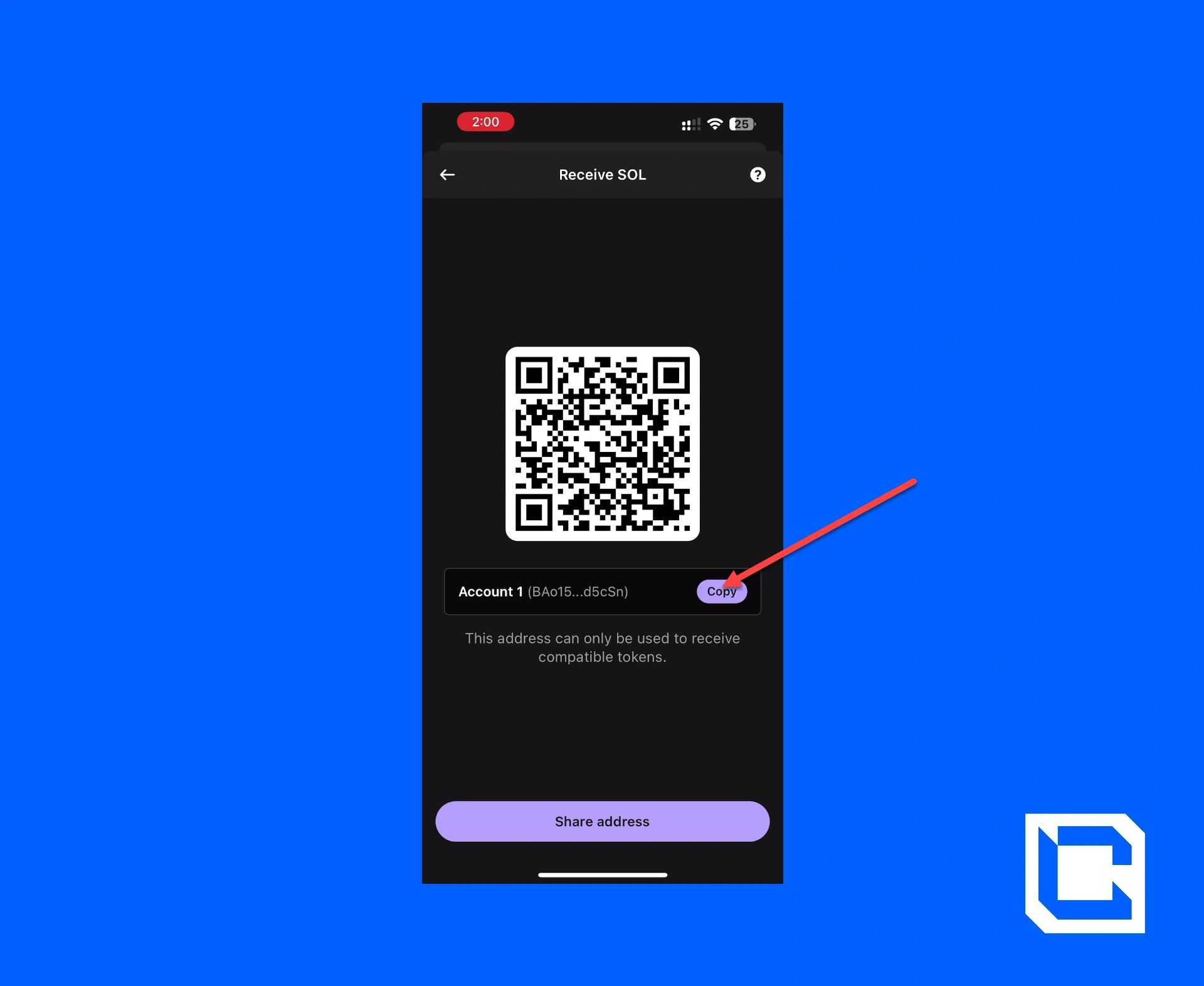
- Now open your Phantom Wallet and tap on the “SOL” option.
- Now tap on the “Receive” icon.
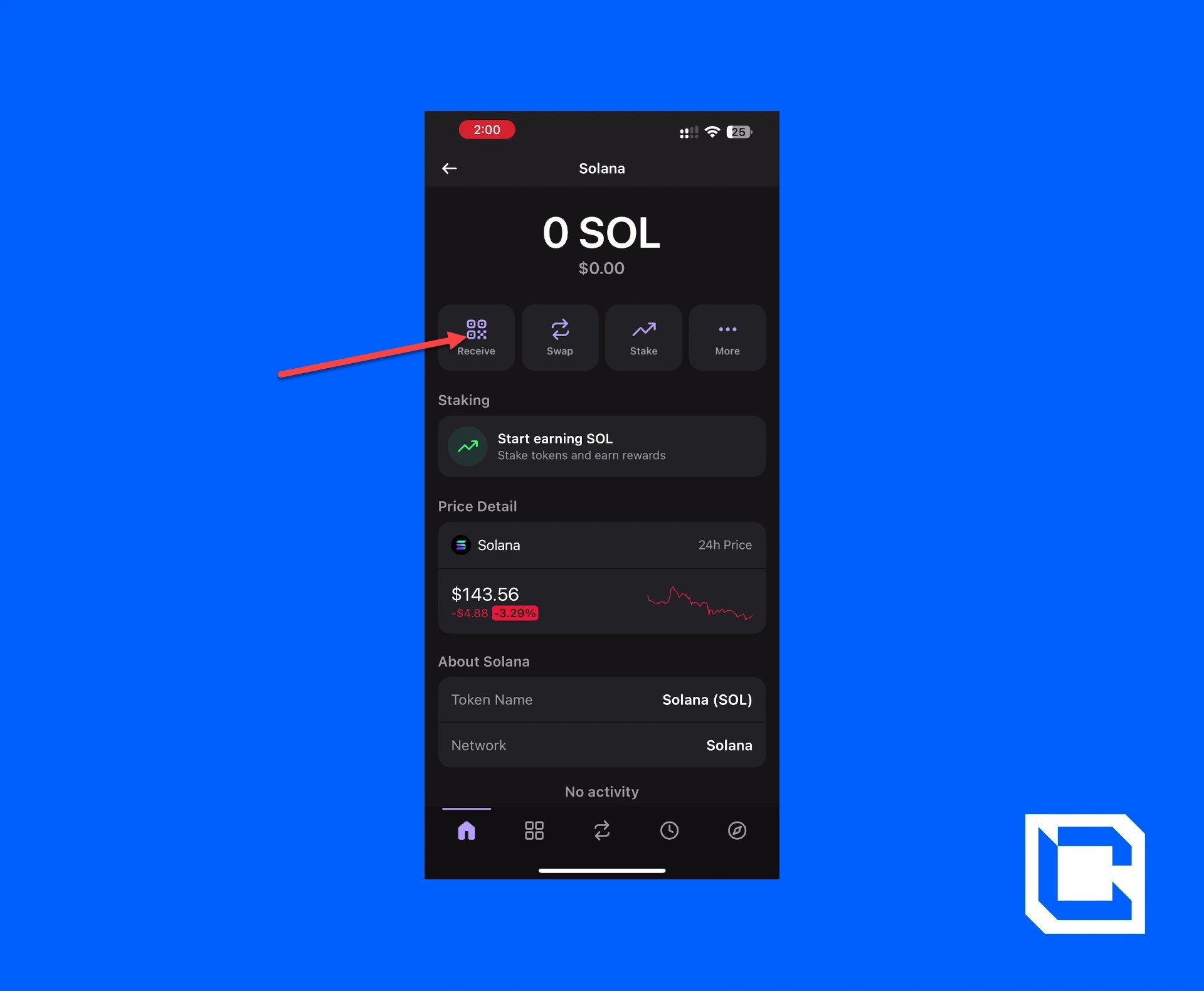
- Copy the address for SOL.
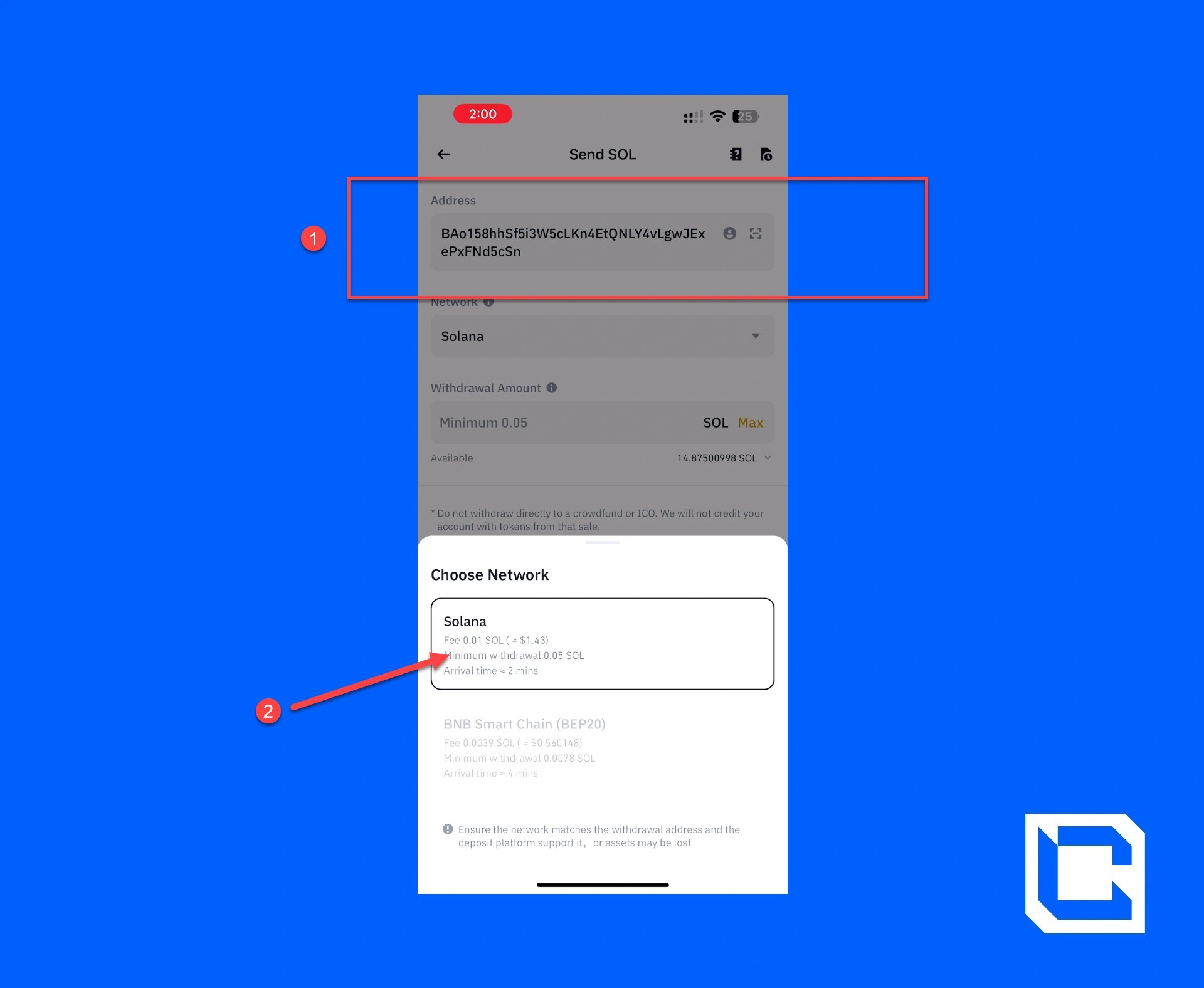
- Paste the previously copied SOL address of your Phantom Wallet and select the network.
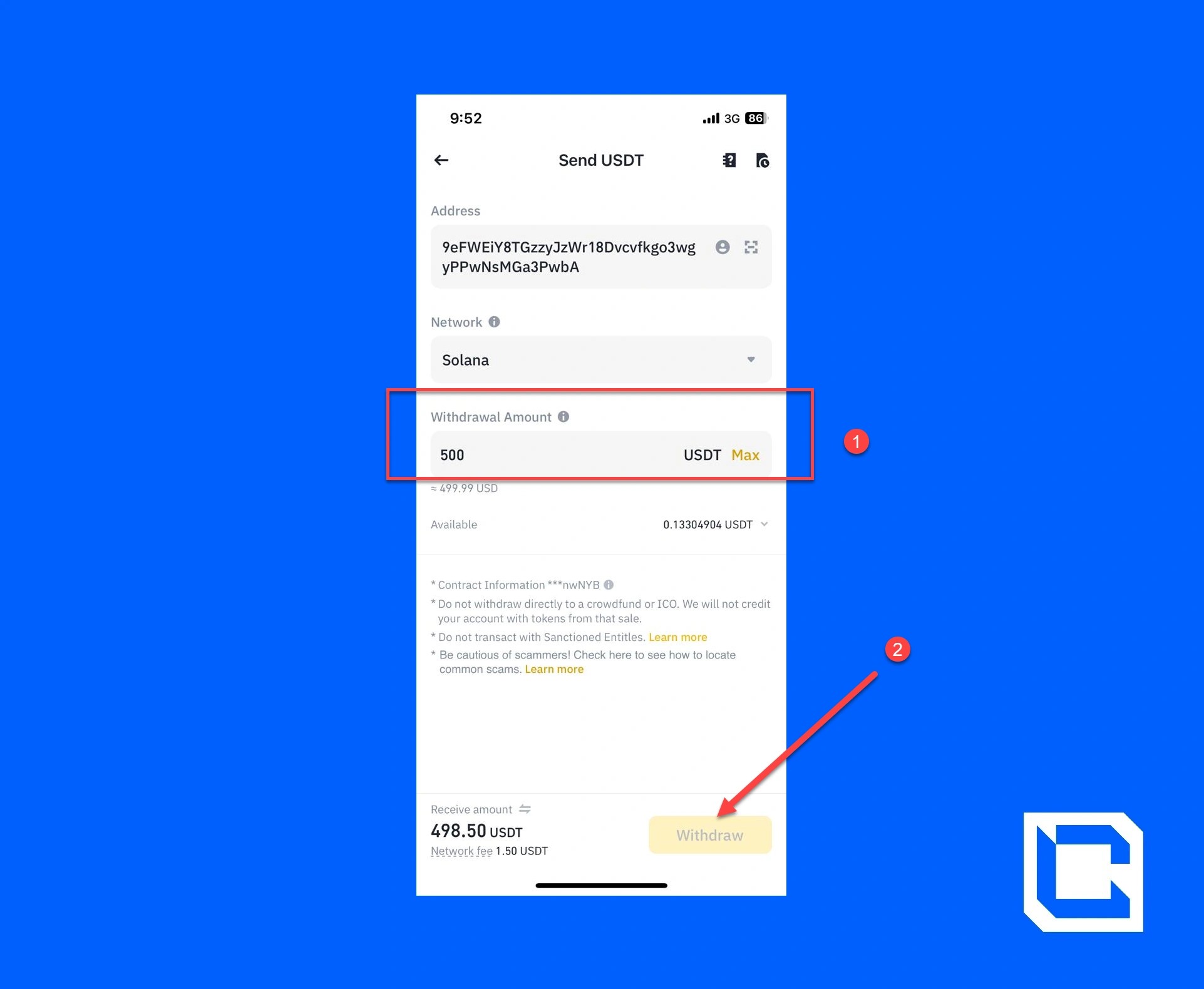
- Now, select the amount of USDT you want to send and tap on the “Withdraw” button.
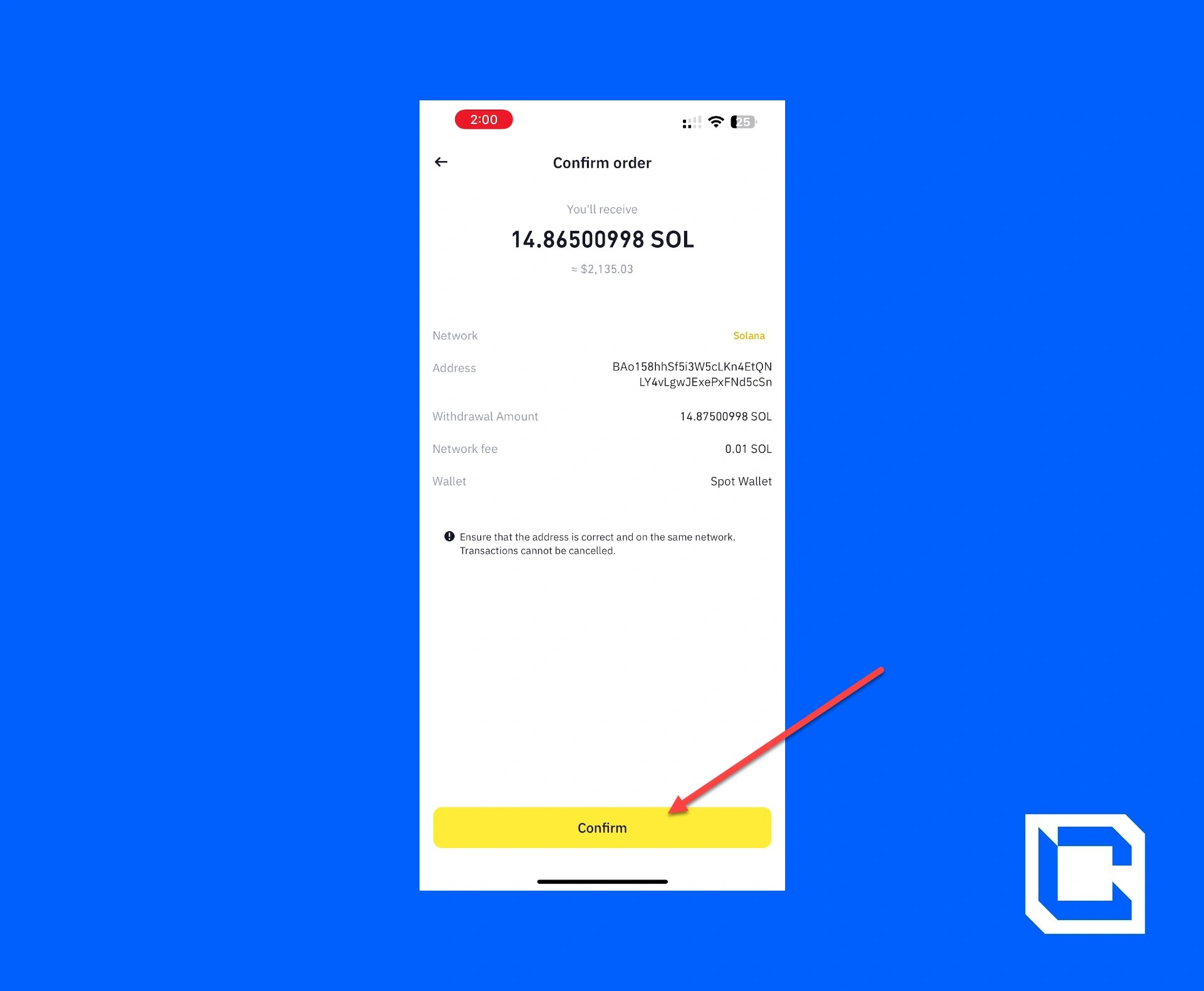
- Tap on the “Confirm” button.
- Complete the authentication process for both Email and the Authenticator App.
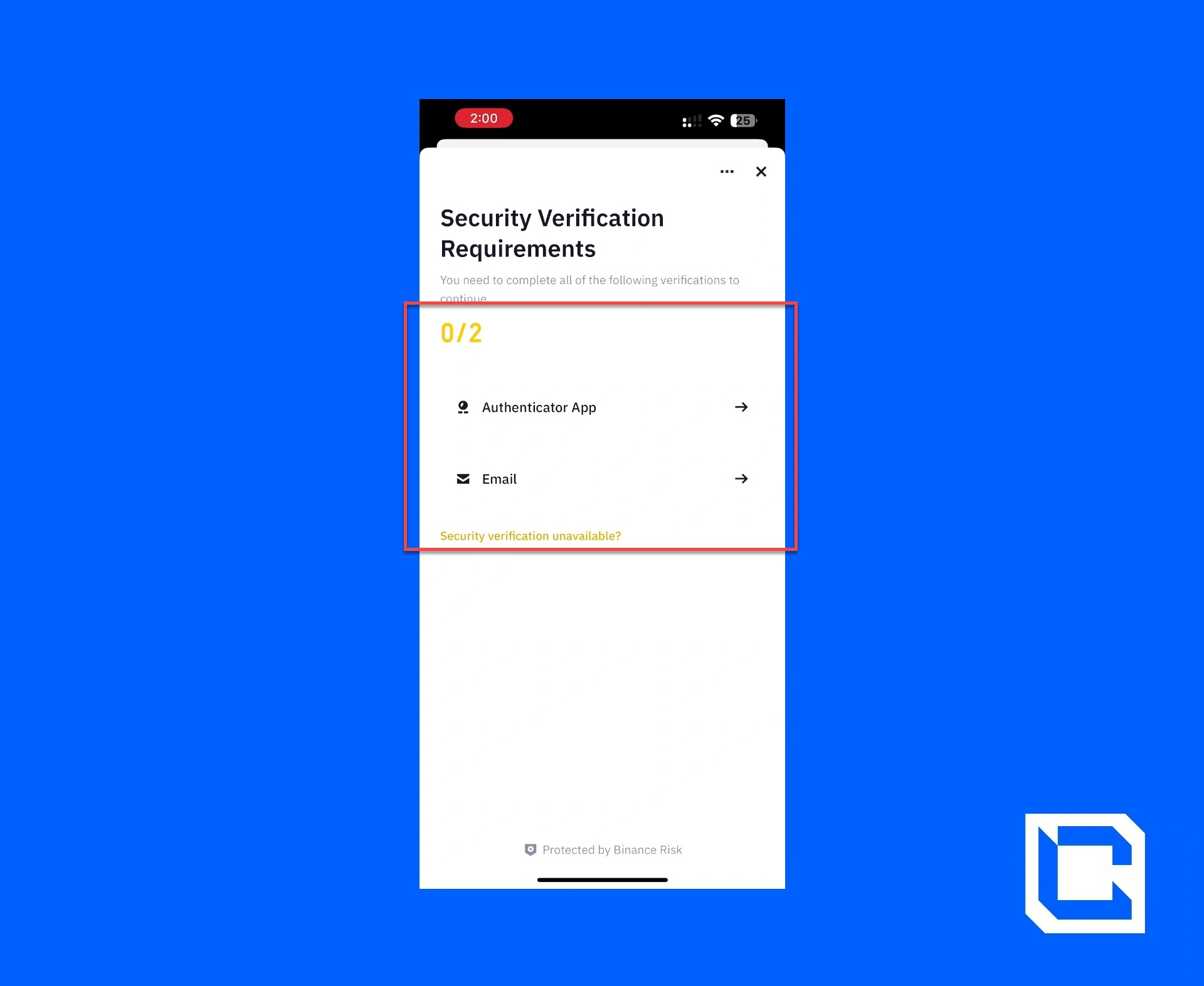
After completing the verification process, the USDT will be transferred to your Phantom Wallet.

Step 6: Using a DEX With Phantom Wallet
Now that you have USDT in your wallet, we can proceed with learning how to use DEX with Phantom Wallet. Beyond swapping assets on Raydium, Jupiter, or Orca, you may want to track your transactions and market trends more efficiently. For this, let's explore how to connect Phantom Wallet to Dexscreener.Raydium:
As mentioned before, we’ll be swapping out USDT for WIF.- Tap on the "Discover" icon in the bottom-right corner.
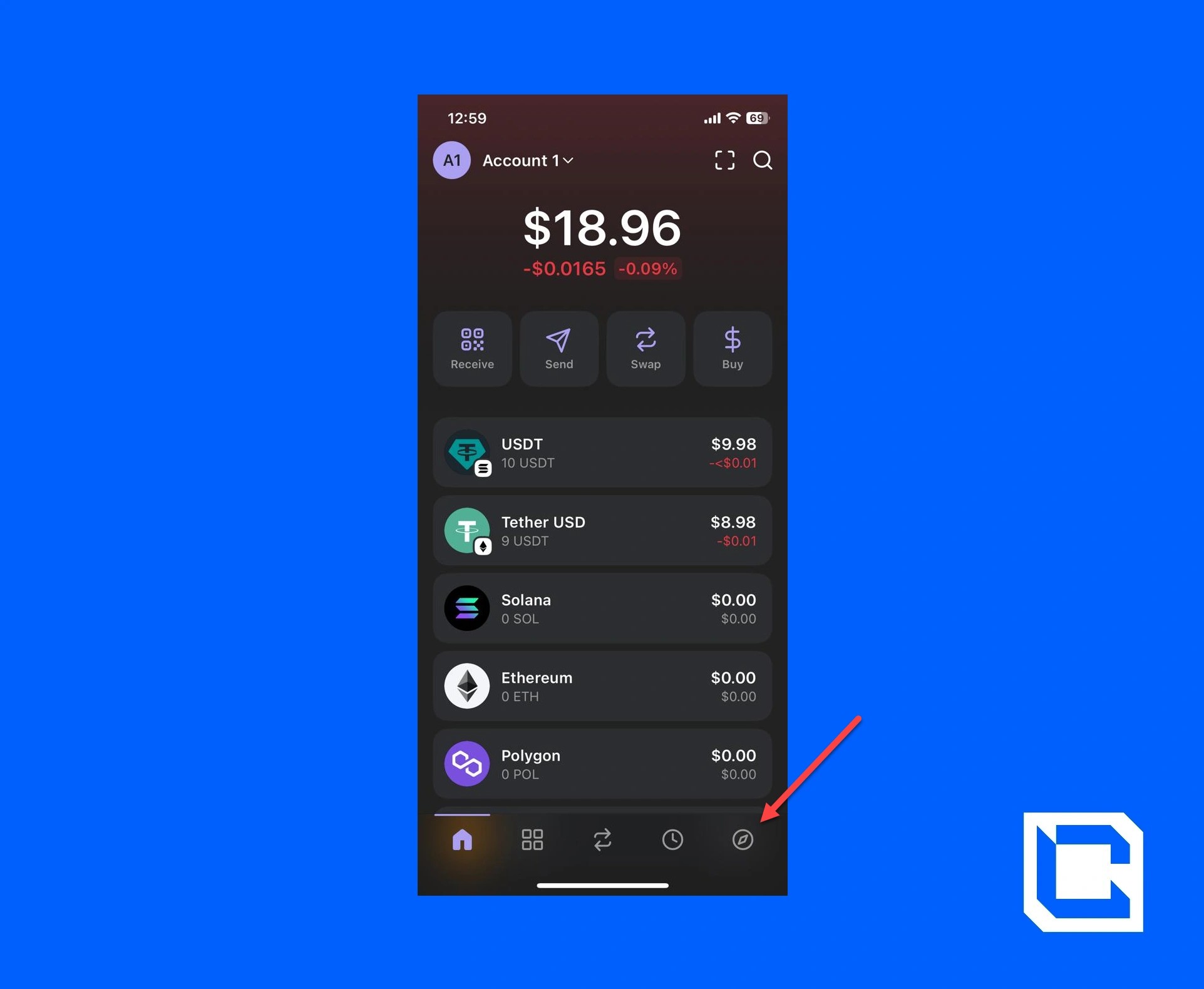
- Now, tap on the "Raydium" option.
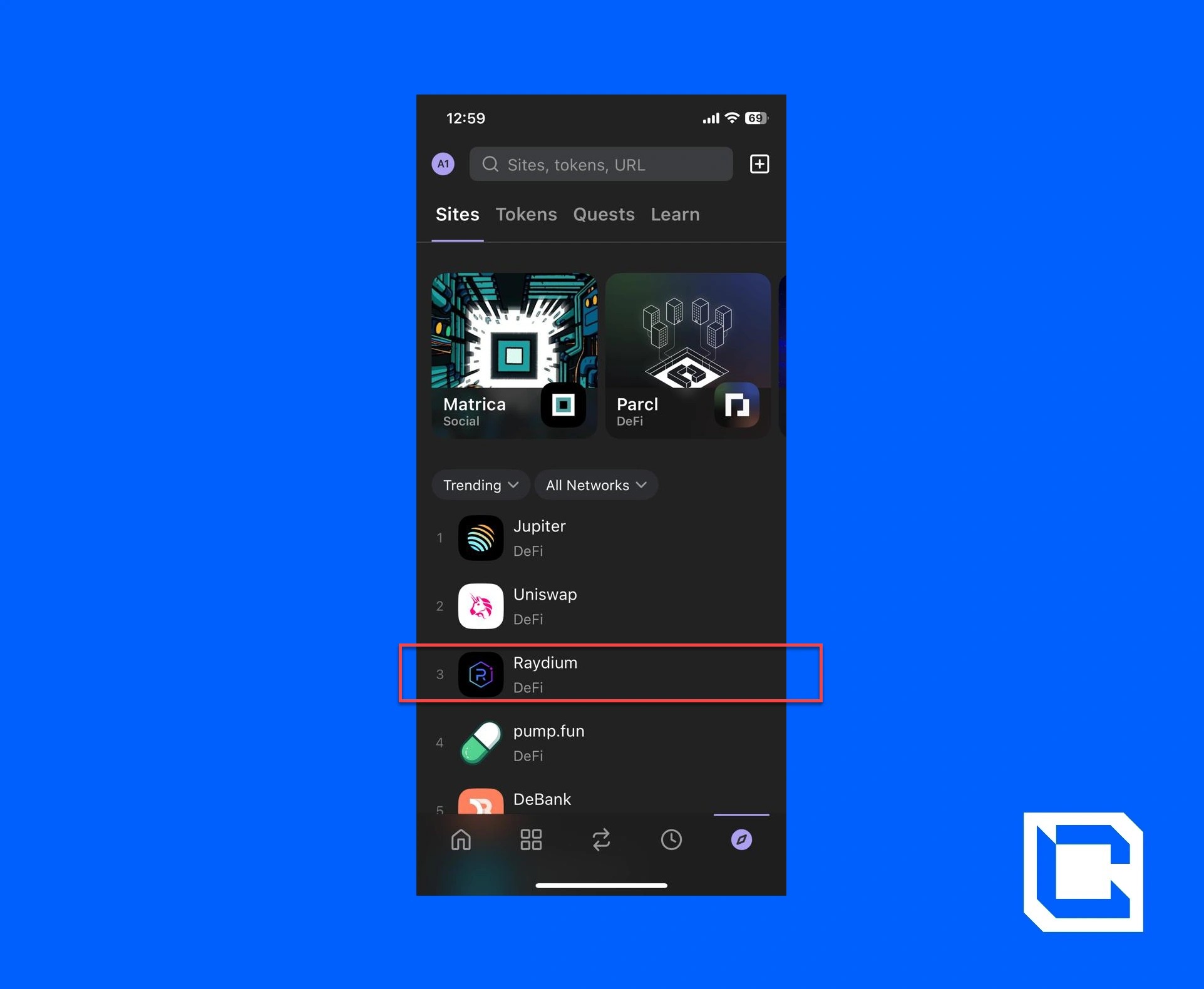
- Agree to the terms of Raydium and tap on the "Enter Raydium" button.
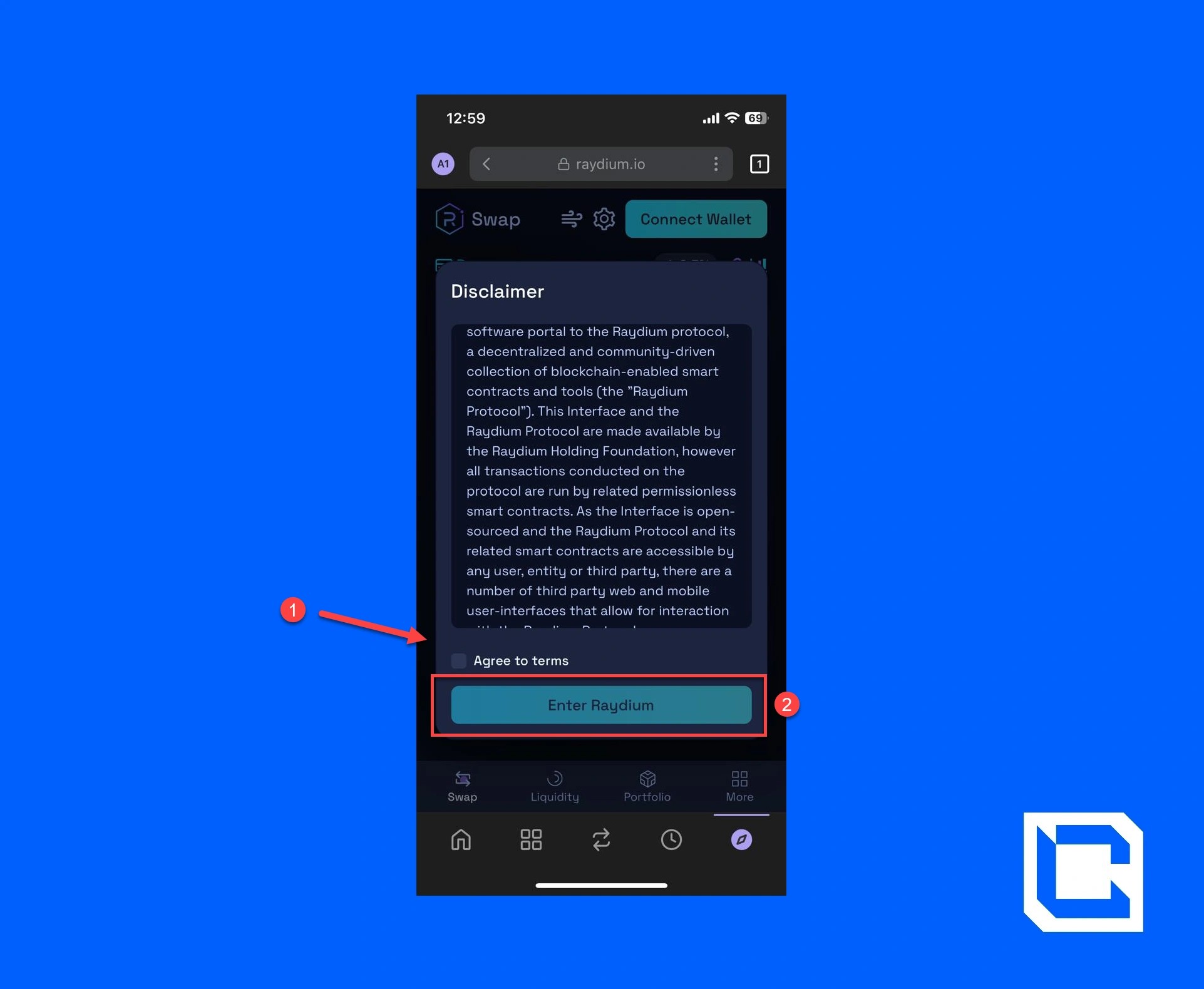
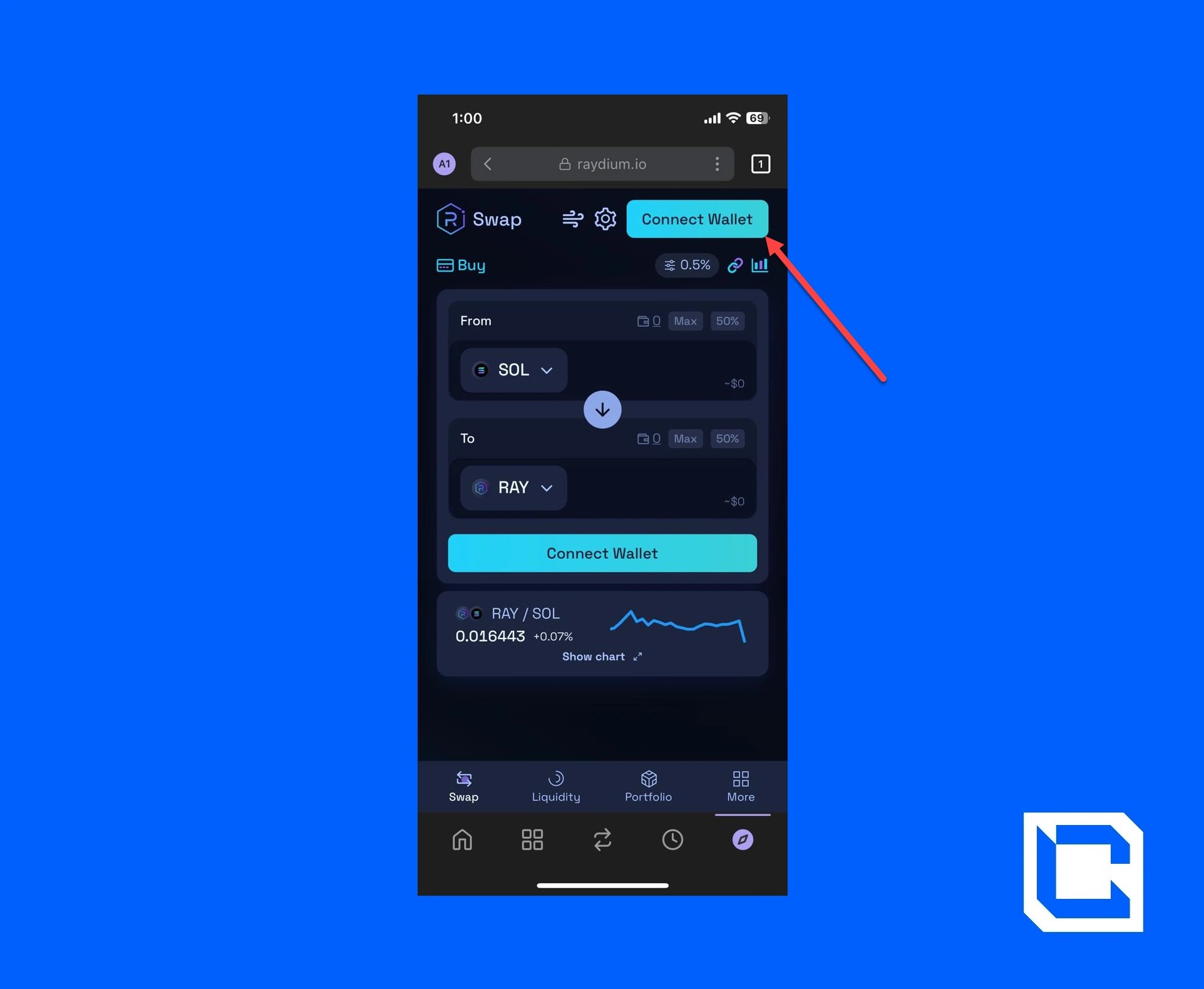
- Next, tap on the "Connect Wallet" button.
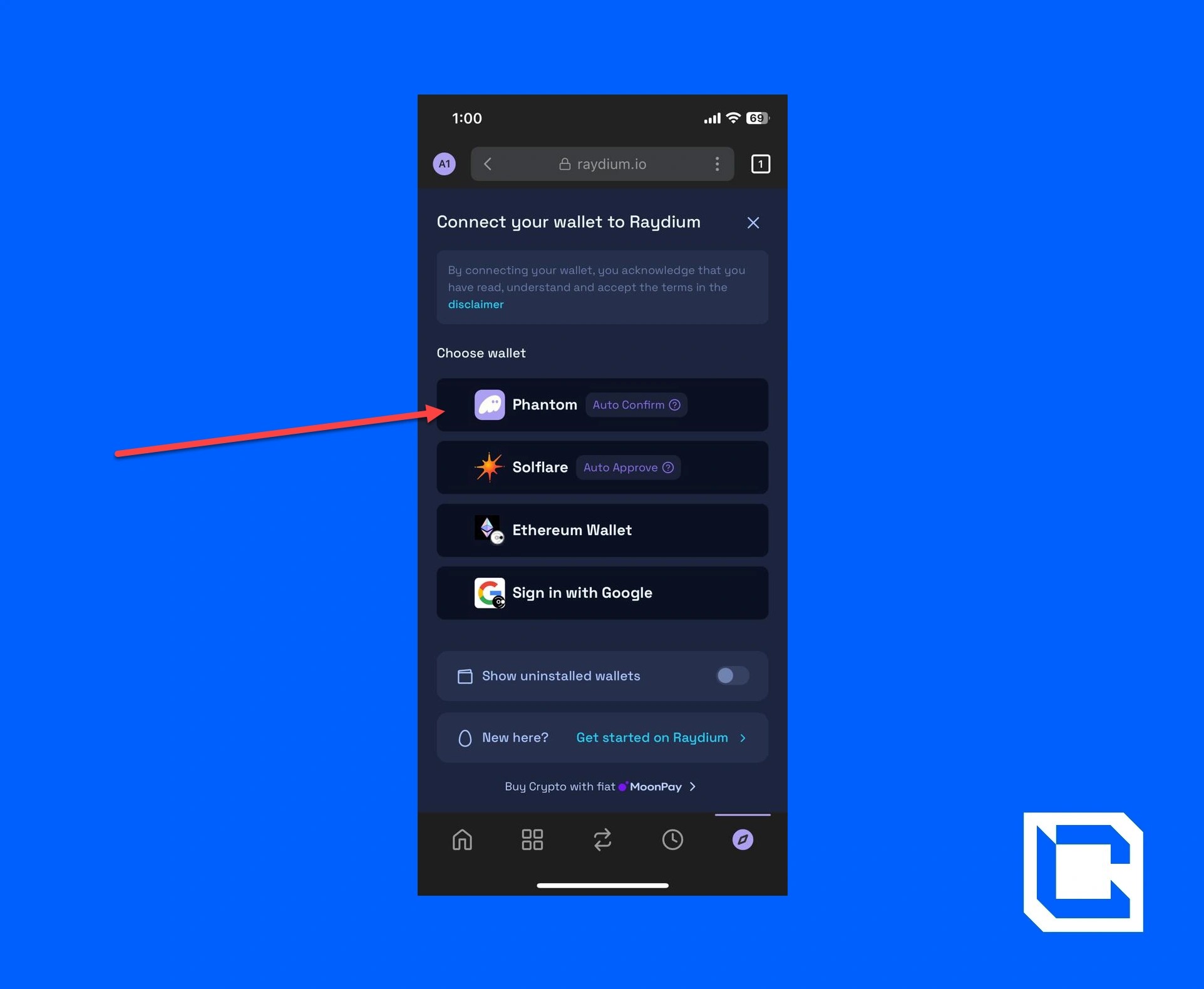
- Choose the "Phantom" option.
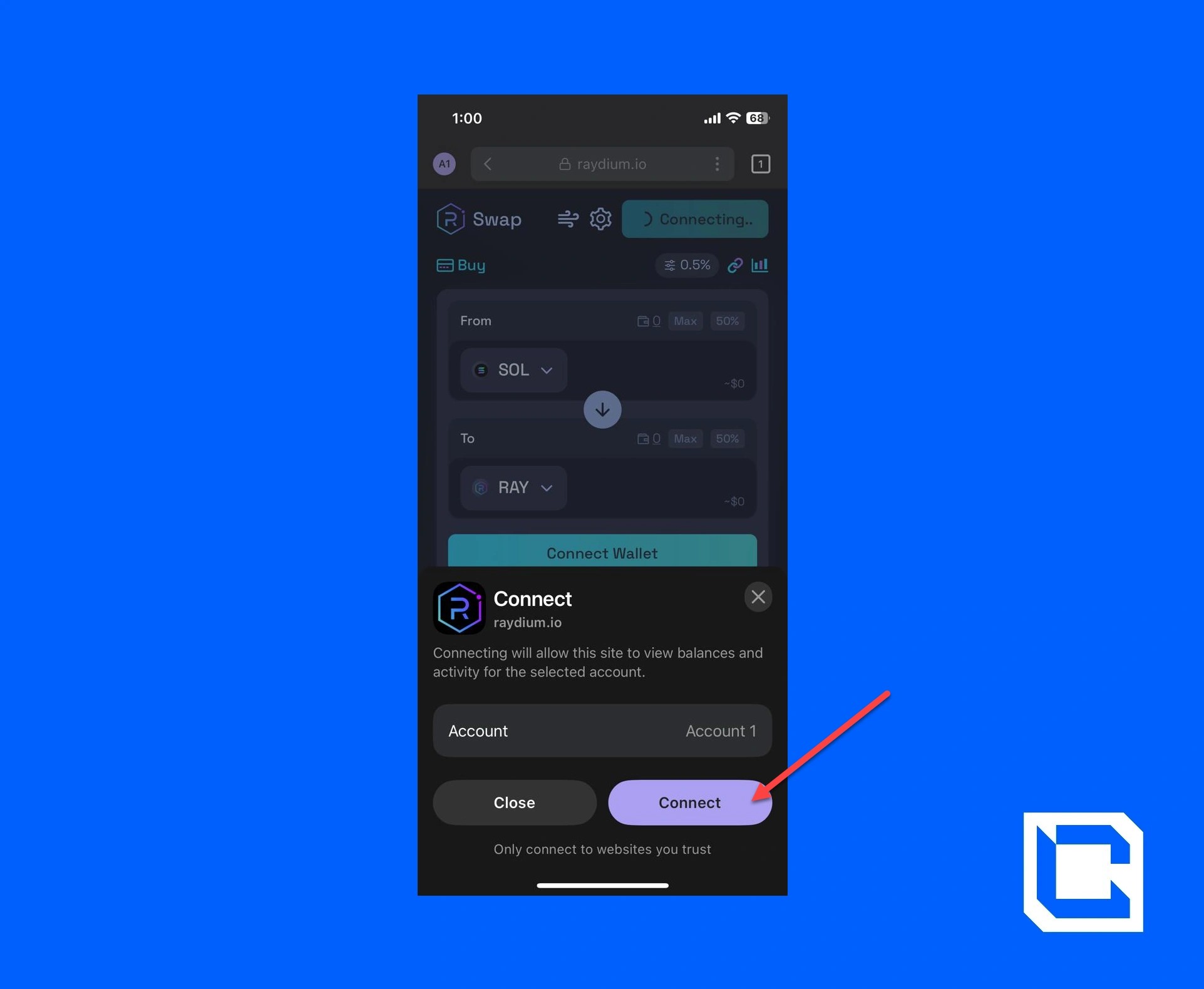
- Select the account and tap on the "Connect" button.
- Set the top coin to the "USDT" coin and the bottom to the "WIF" coin.
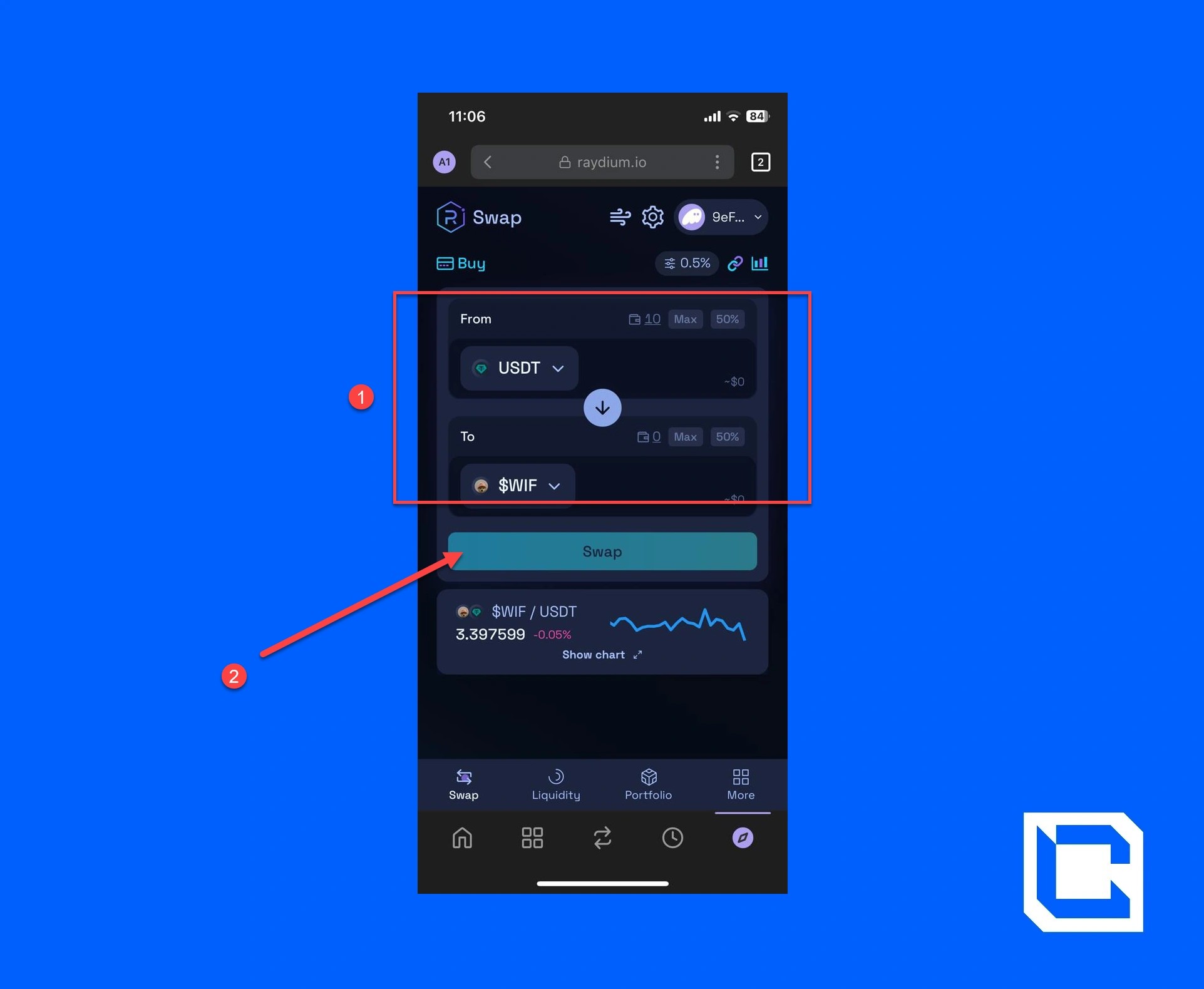
- Enter the amount of USDT you want to spend and tap on the "Swap" option.
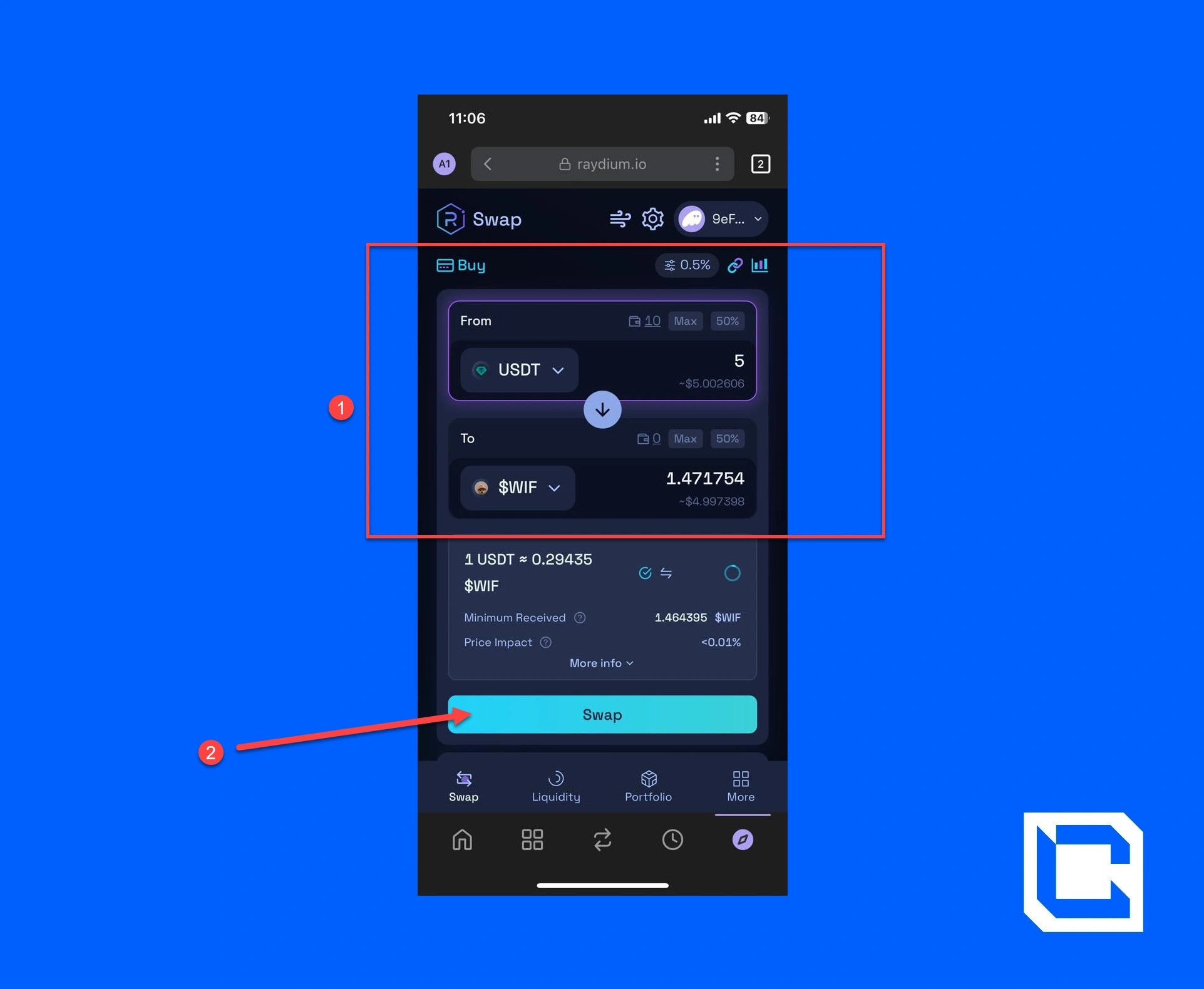
Once you follow all of these steps and verify the transaction, WIF will be added to your wallet.
Jupiter:
For the next DEX, we'll be going over using Jupiter with Phantom Wallet.- Tap on the "Discover" icon in the bottom-right corner.
- Now, look up and tap on the "Jupiter" option.
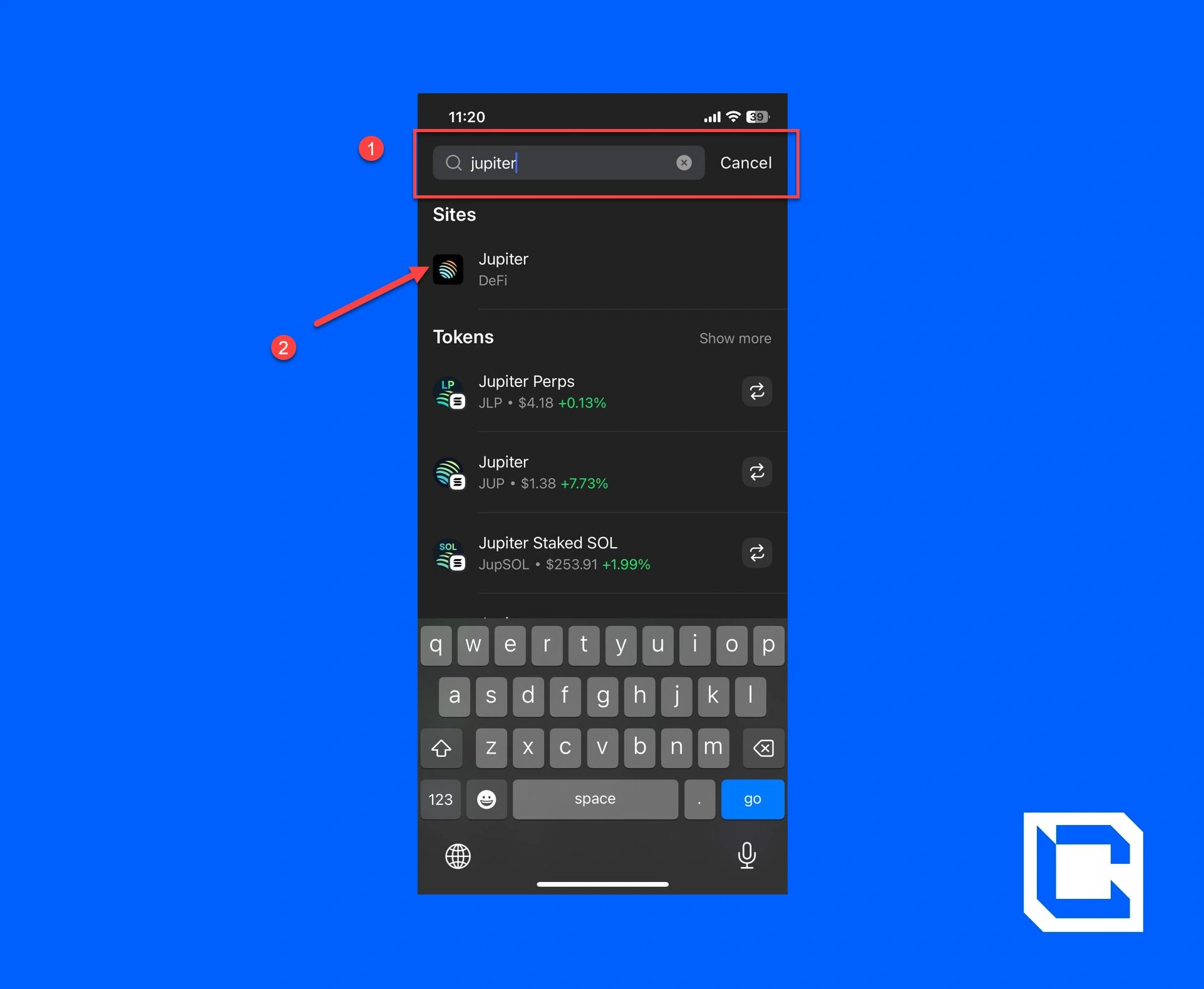
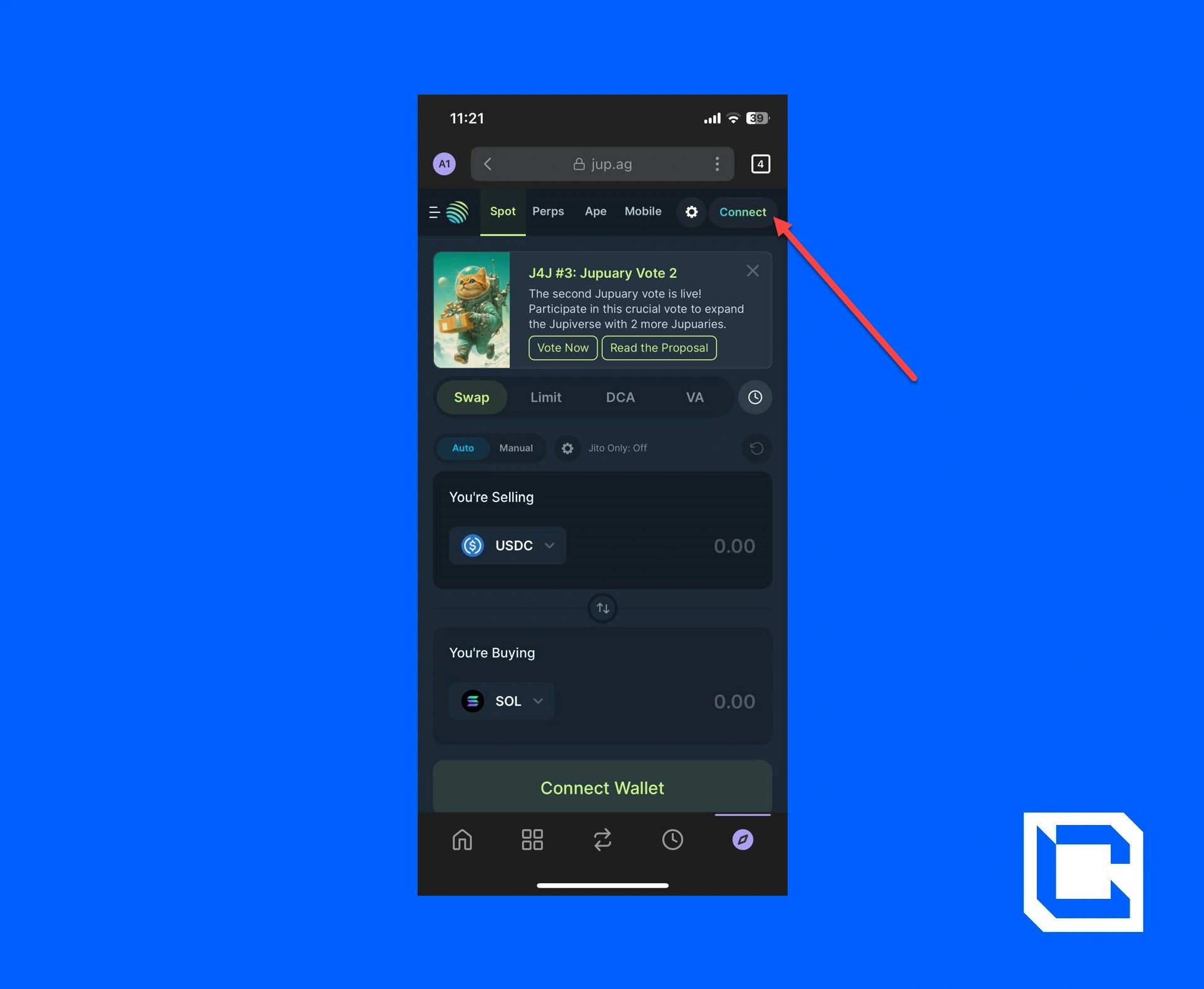
- Tap on the "Connect" button.
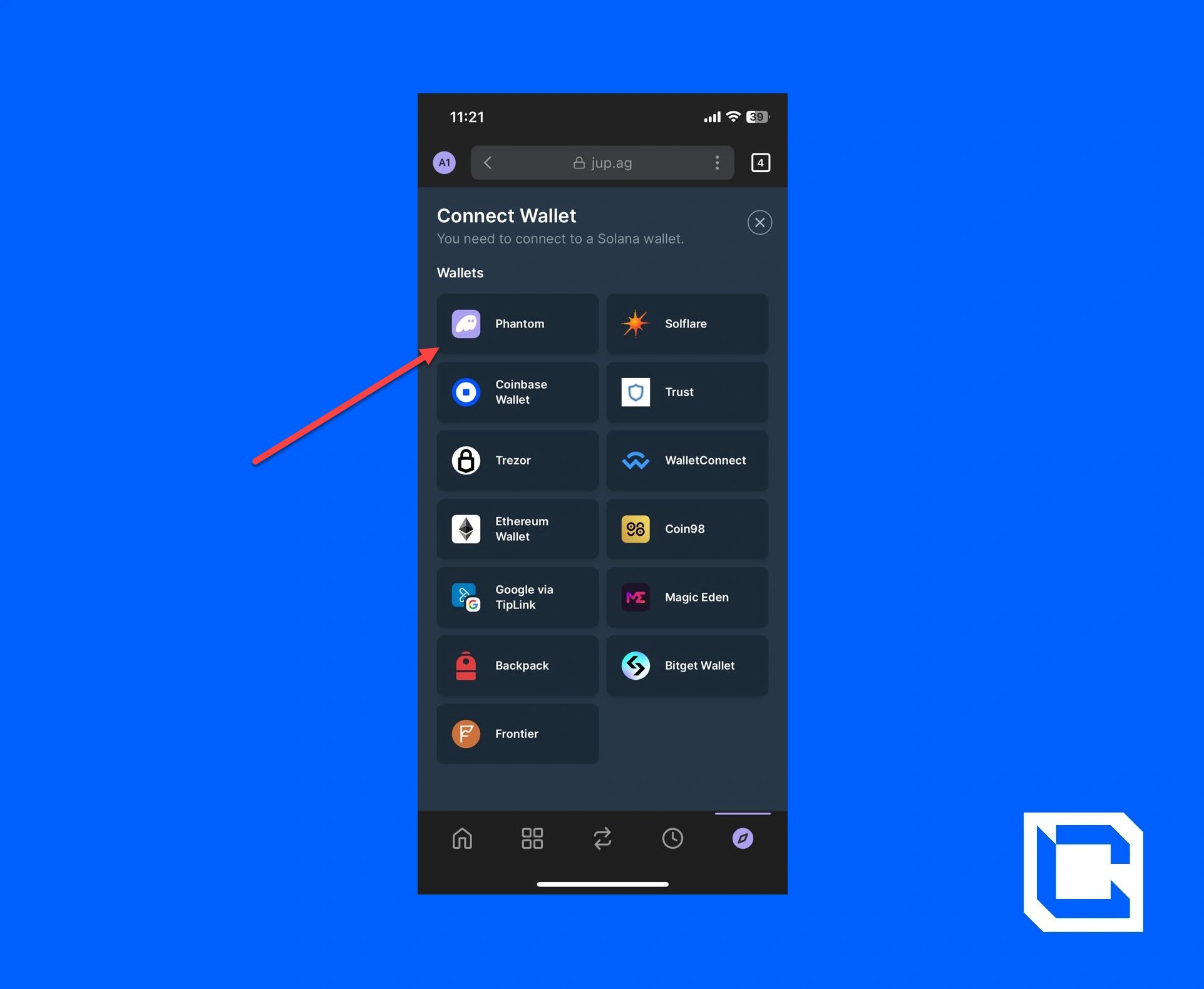
- Choose the "Phantom Wallet" option.
- After that, tap on the "Connect" button.
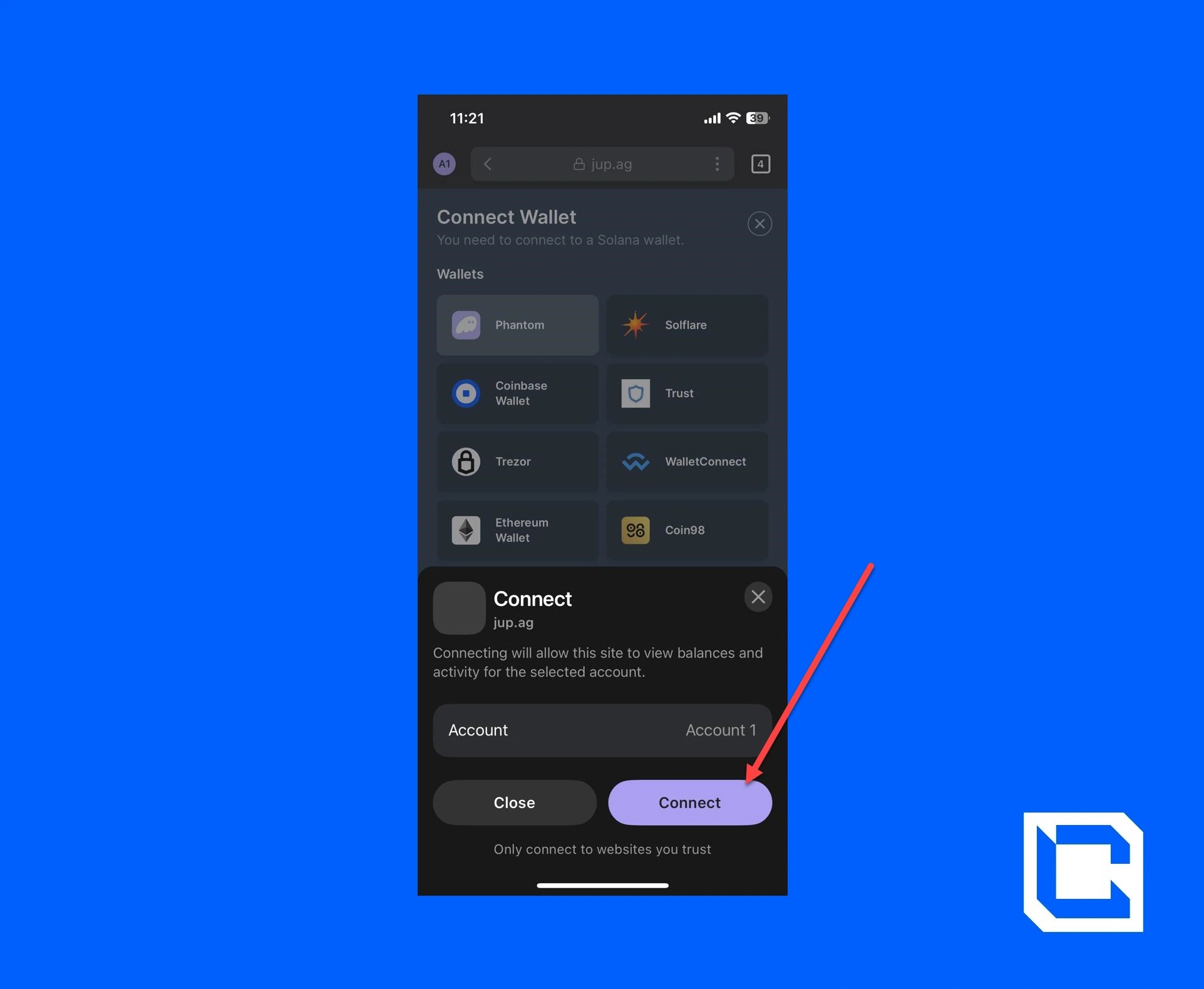
- Now, set the top and bottom coins to USDT and WIF, respectively.
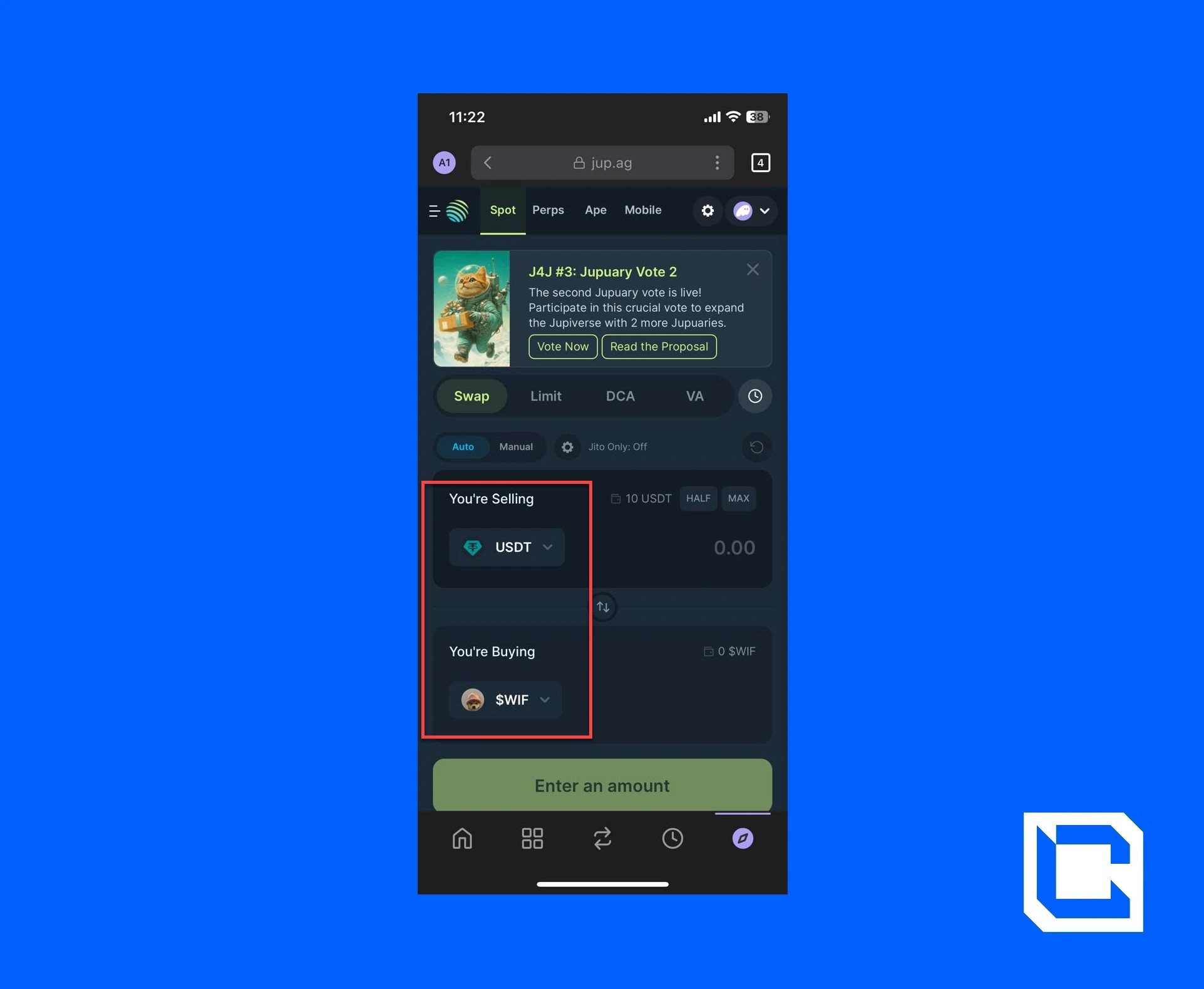
- Enter the amount of USDT you want to spend, and after verifying all of the details, tap on the "Swap" button.

Orca:
Lastly, we'll be going over ORCA so you can learn how to use DEX with Phantom Wallet effectively.- Start going to the "Discover" section.
- Look up and tap on the "Orca" DEX.
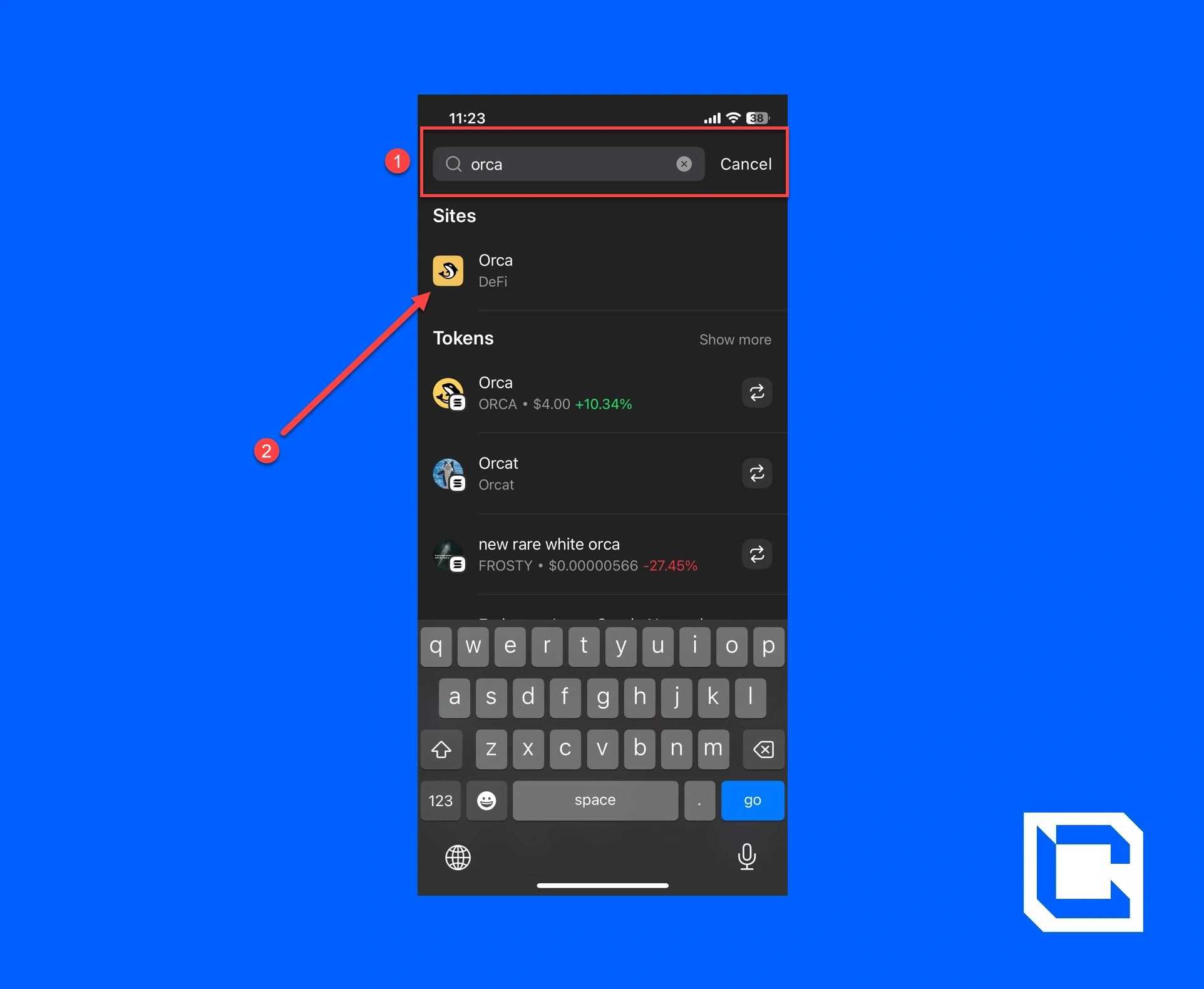
- Tap on the "Connect Wallet" button.
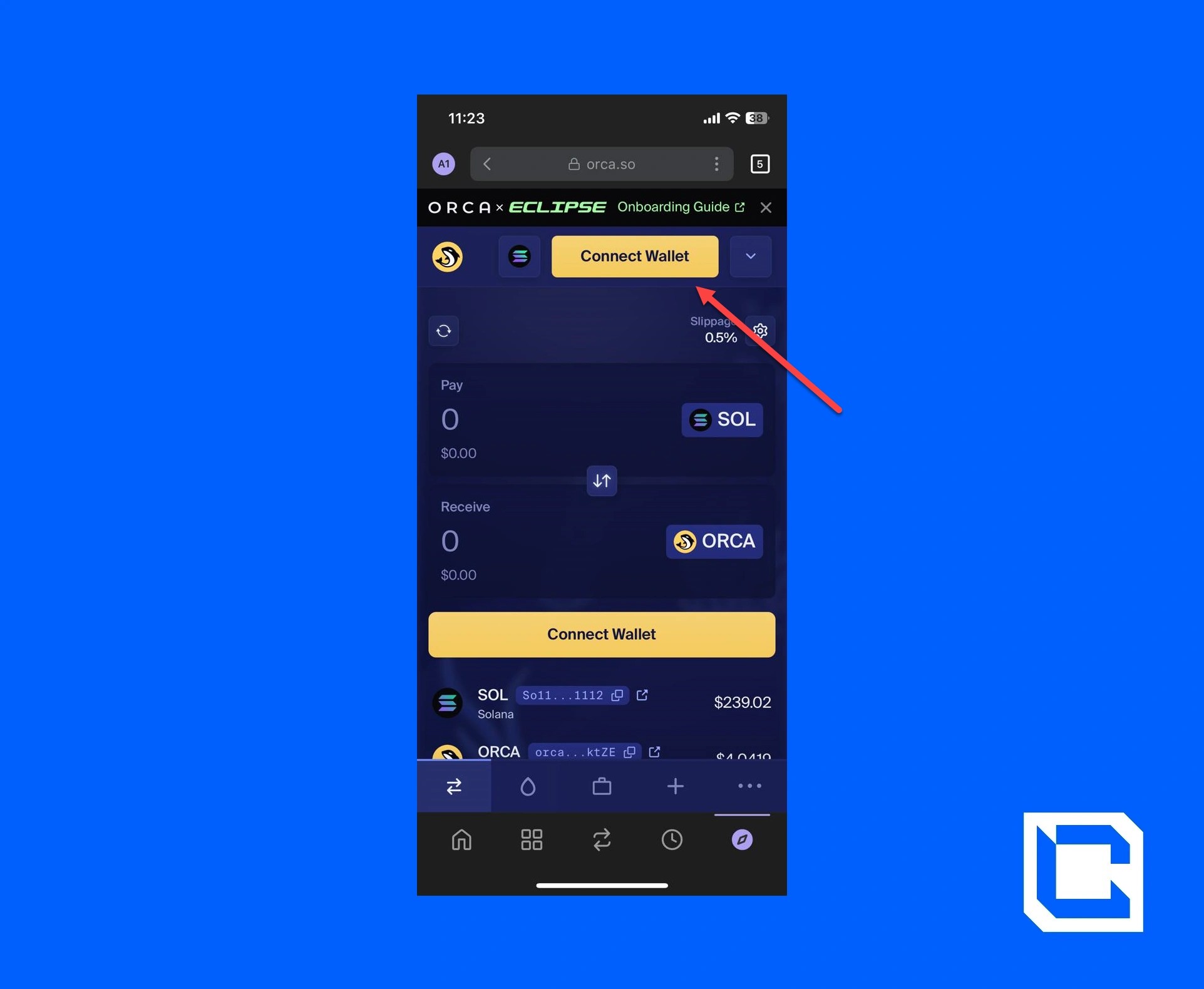
- Choose the "Phantom Wallet" option and tap on the "Connect Wallet" button.
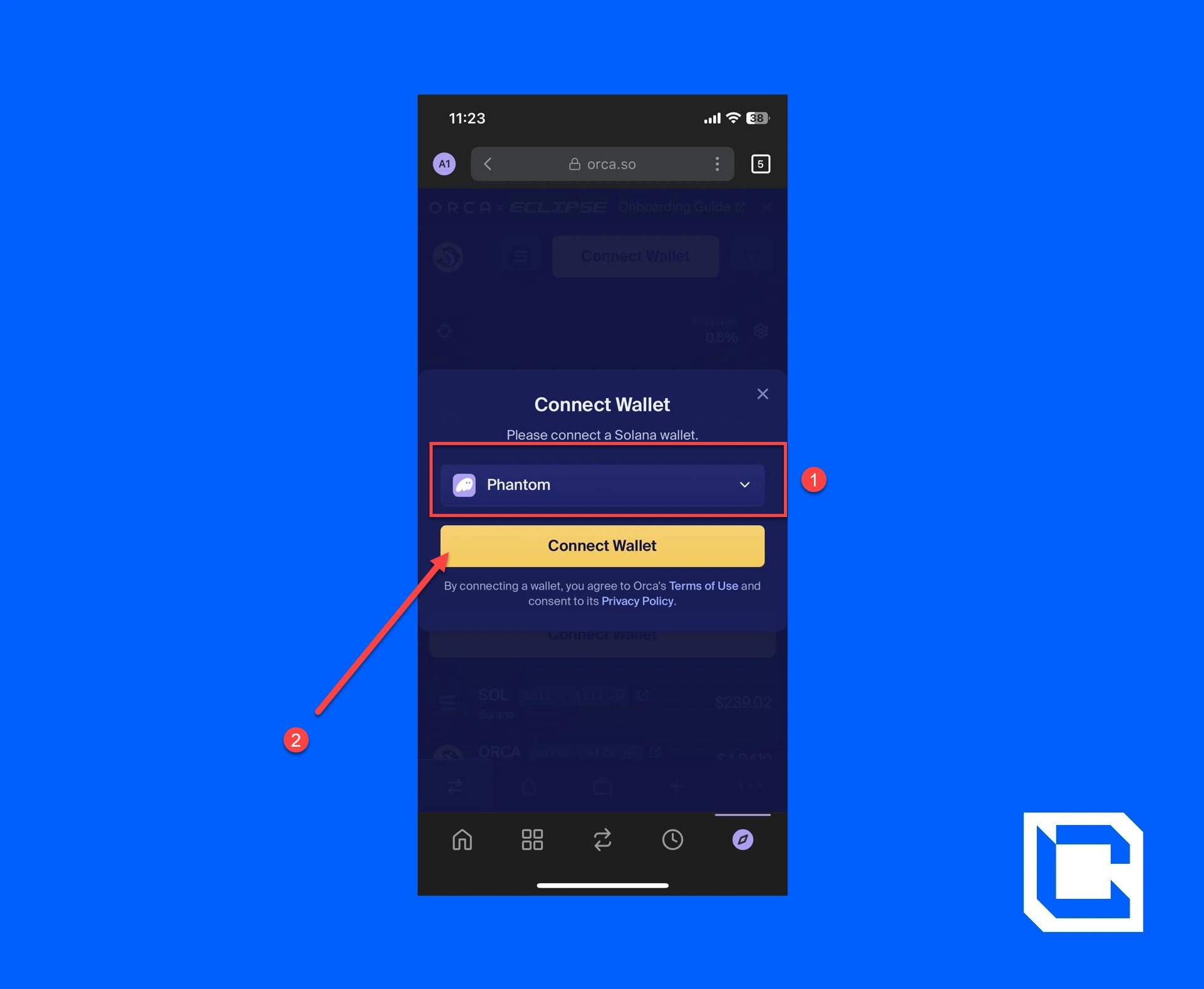
- After that, tap on the "Connect" button.

- Now, set the top and bottom coins to USDT and WIF, respectively.
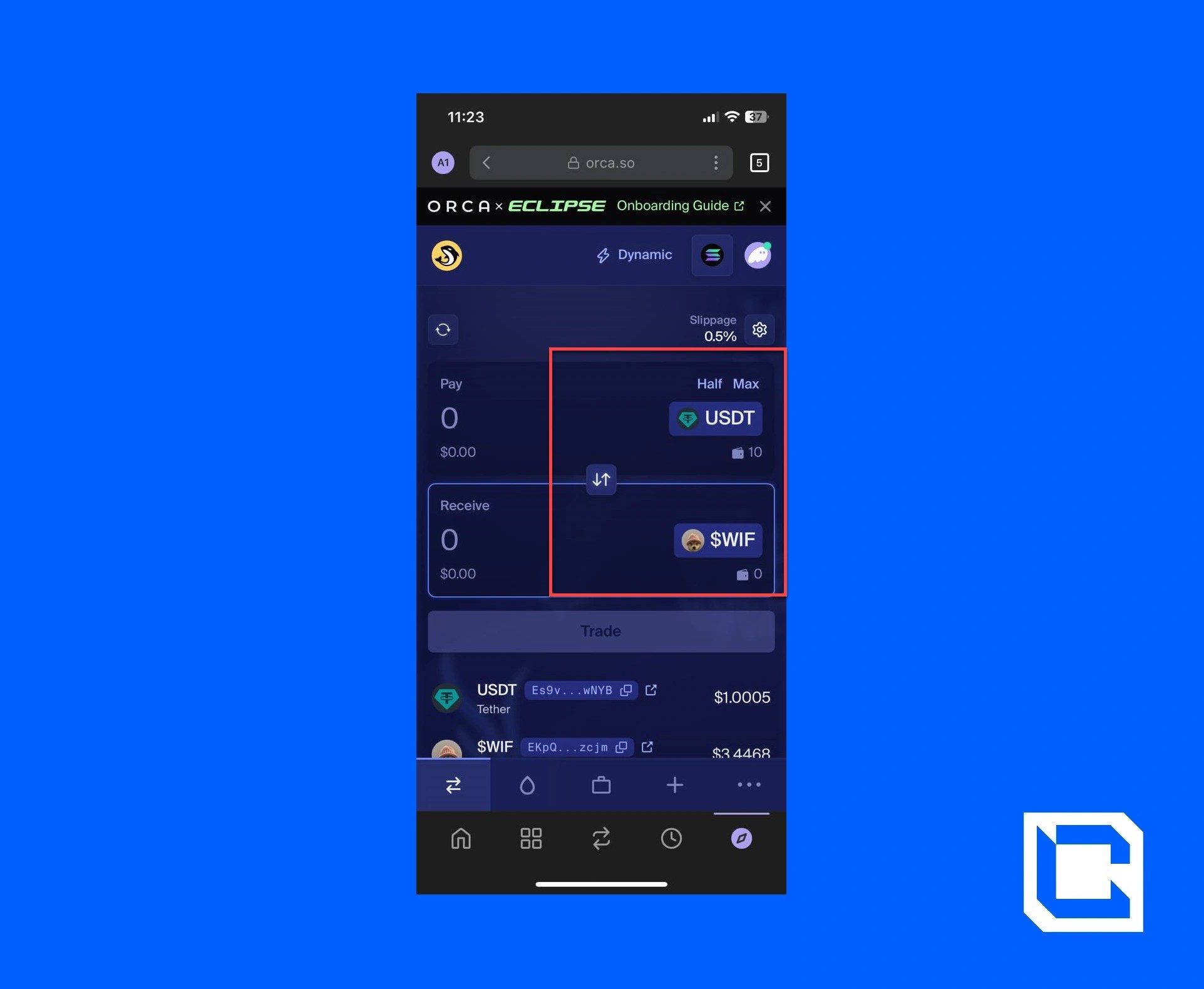
- Lastly, enter the amount of USDT you want to spend and tap on the "Trade" button.
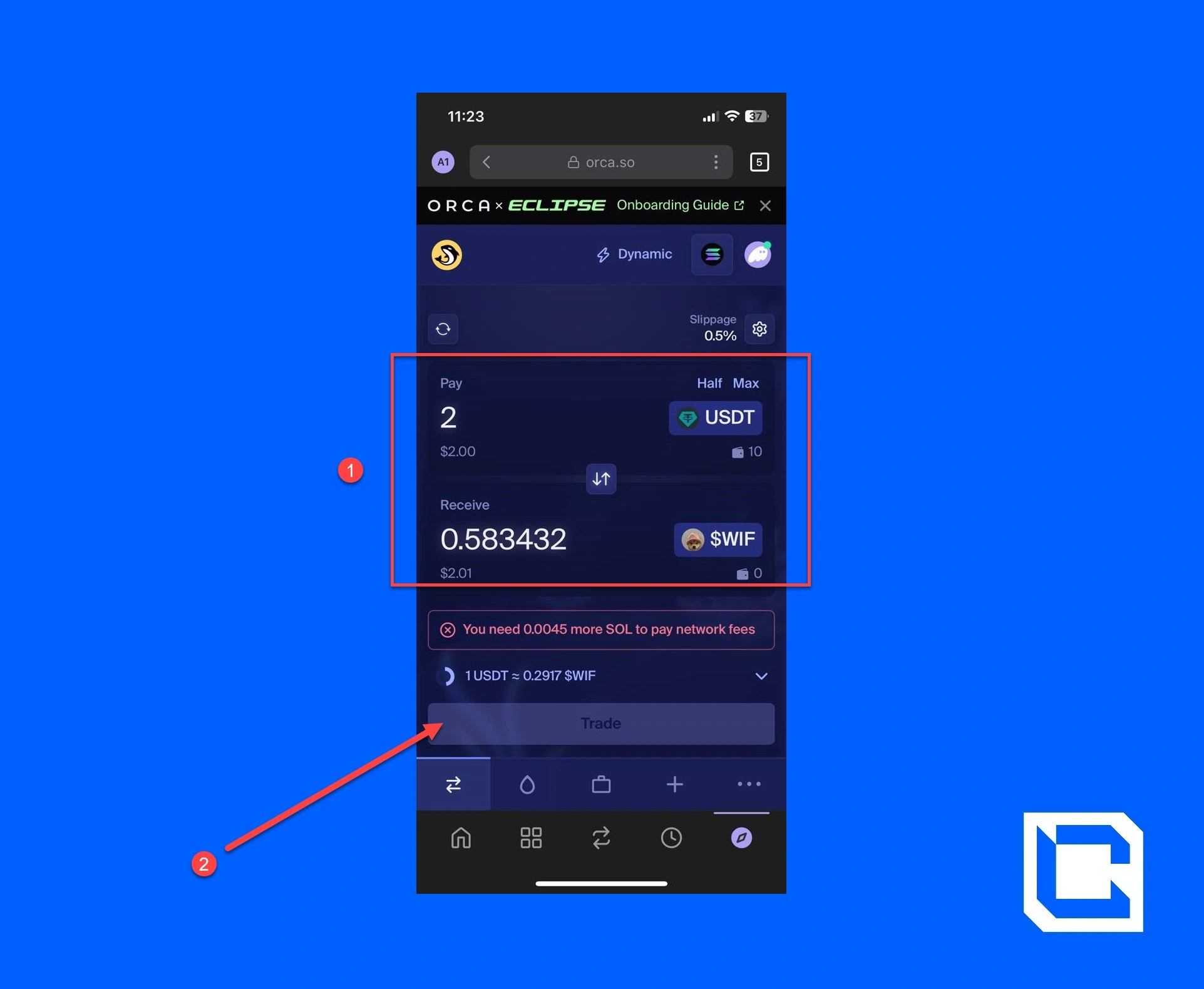
By learning how to connect Phantom Wallet to Dexscreener, you can keep track of your trades and monitor your portfolio performance with ease.
Conclusion
If you follow the outlined steps, you'll not only learn how to use DEX with Phantom Wallet but also understand how to connect Phantom Wallet to Dexscreener to monitor your transactions effectively. To keep your crypto further secure, use a hot wallet like Argent Wallet. One thing that you should always keep in mind is to do your research before buying any kind of coin.Even in the case of WIF, you should stay up-to-date with the market to maximise your profit. That's why if you need any kind of guidance, Cryptonary is here to help. Sign up for free and stay up-to-date about coins to look out for. No matter if it's a guide on the safest ways to buy crypto or recent market updates, we'll make sure to provide you with the most accurate information.
FAQs
Here are FAQs for using DEX with Phantom Wallet.1. Can you connect Phantom Wallet to Dex?
Yes, you can connect your Phantom Wallet to decentralised exchanges (DEXs) such as Raydium, Jupiter, and Orca. Additionally, you can connect your Phantom Wallet to platforms like Dexscreener to monitor live trades, liquidity, and swaps in real-time.2. Is Phantom a DEX wallet?
Phantom is not a DEX itself but a non-custodial wallet designed for the Solana blockchain. It supports interactions with various DEXs, allowing users to trade and swap tokens directly on decentralised platforms.3. What DEX does Phantom Wallet use?
Phantom Wallet is compatible with many Solana-based DEXs, including Raydium, Jupiter, and Orca. You can seamlessly connect your wallet to these platforms to swap tokens, provide liquidity, and engage in other DeFi activities.4. How do I get my Phantom Wallet on my phone to reflect on the DEX desktop app?
To sync your Phantom Wallet with a DEX desktop app, log into the DEX and connect your wallet by selecting "Phantom Wallet" when prompted. Ensure the same wallet is installed on your mobile and desktop browser extensions for seamless transactions.5. Why do I need SOL in my Phantom Wallet for DEX transactions?
SOL is the native cryptocurrency of the Solana blockchain and is required to pay for transaction fees, known as "gas." Without sufficient SOL in your wallet, transactions such as token swaps or staking cannot be processed. Always ensure you have enough SOL to cover fees before initiating a DEX transaction.Stay Ahead in Crypto with Cryptonary 🚀
Mastering DEX trading with Phantom Wallet is just the beginning. To truly stay ahead, you need expert insights, real-time market updates, and winning strategies. Cryptonary gives you exactly that—trusted by 230,000+ investors.✅ Exclusive crypto research ✅ Top trading strategies ✅ Community of 17,000+ members
Try it 100% risk-free for 7 days.
Continue reading by joining Cryptonary Pro
$0
Get everything you need to actively manage your portfolio and stay ahead. Ideal for investors seeking regular guidance and access to tools that help make informed decisions.


For your security, all orders are processed on a secured server.
As a Cryptonary Pro subscriber, you also get:
3X Value Guarantee - If cumulative documented upside does not reach 300% during your 12-month membership, you can request a full refund. Terms
24/7 access to experts with 50+ years’ experience
All of our top token picks for 2025
On hand technical analysis on any token of your choice
Weekly livestreams & ask us anything with the team
Daily insights on Macro, Mechanics, and On-chain
Curated list of top upcoming airdrops (free money)
3X Value Guarantee
If cumulative documented upside does not reach 300% during your 12-month membership, you can request a full refund.

Our track record speaks for itself
With over 2.4M tokens and widespread misinformation in crypto, we cut through the noise and consistently find winning assets.
Our track record speaks for itself
With over 2.4M tokens and widespread misinformation in crypto, we cut
through the noise and consistently find winning assets.


Frequently Asked Questions
Can I trust Cryptonary's calls?
Yes. We've consistently identified winners across multiple cycles. Bitcoin under $1,000, Ethereum under $70, Solana under $10, WIF from $0.003 to $5, PopCat from $0.004 to $2, SPX blasting past $1.70, and our latest pick has already 200X'd since June 2025. Everything is timestamped and public record.
Do I need to be an experienced trader or investor to benefit?
No. When we founded Cryptonary in 2017 the market was new to everyone. We intentionally created content that was easy to understand and actionable. That foundational principle is the crux of Cryptonary. Taking complex ideas and opportunities and presenting them in a way a 10 year old could understand.
What makes Cryptonary different from free crypto content on YouTube or Twitter?
Signal vs noise. We filter out 99.9% of garbage projects, provide data backed analysis, and have a proven track record of finding winners. Not to mention since Cryptonary's inception in 2017 we have never taken investment, sponsorship or partnership. Compare this to pretty much everyone else, no track record, and a long list of partnerships that cloud judgements.
Why is there no trial or refund policy?
We share highly sensitive, time-critical research. Once it's out, it can't be "returned." That's why membership is annual only. Crypto success takes time and commitment. If someone is not willing to invest 12 months into their future, there is no place for them at Cryptonary.
Do I get direct access to the Cryptonary team?
Yes. You will have 24/7 to the team that bought you BTC at $1,000, ETH at $70, and SOL at $10. Through our community chats, live Q&As, and member only channels, you can ask questions and interact directly with the team. Our team has over 50 years of combined experience which you can tap into every single day.
How often is content updated?
Daily. We provide real-time updates, weekly reports, emergency alerts, and live Q&As when the markets move fast. In crypto, the market moves fast, in Cryptonary, we move faster.
How does the 3X Value Guarantee work?
We stand behind the value of our research. If the documented upside from our published research during your 12-month membership does not exceed three times (3X) the annual subscription cost, you can request a full refund. Historical context: In every completed market cycle since 2017, cumulative documented upside has exceeded 10X this threshold.
TermsRecommended from Cryptonary